GymOS guide
Marketing and follow-ups
Switch on automatic WhatsApp and email reminders for renewals, missed payments, birthdays and lapsed members — and log one-to-one follow-ups.
Add-on. Marketing appears in your sidebar when your plan includes WhatsApp and email reminders. Follow-ups are available to everyone.
Marketing is GymOS’s retention engine: reminders that go out on their own, so nobody at the front desk has to remember to send them.
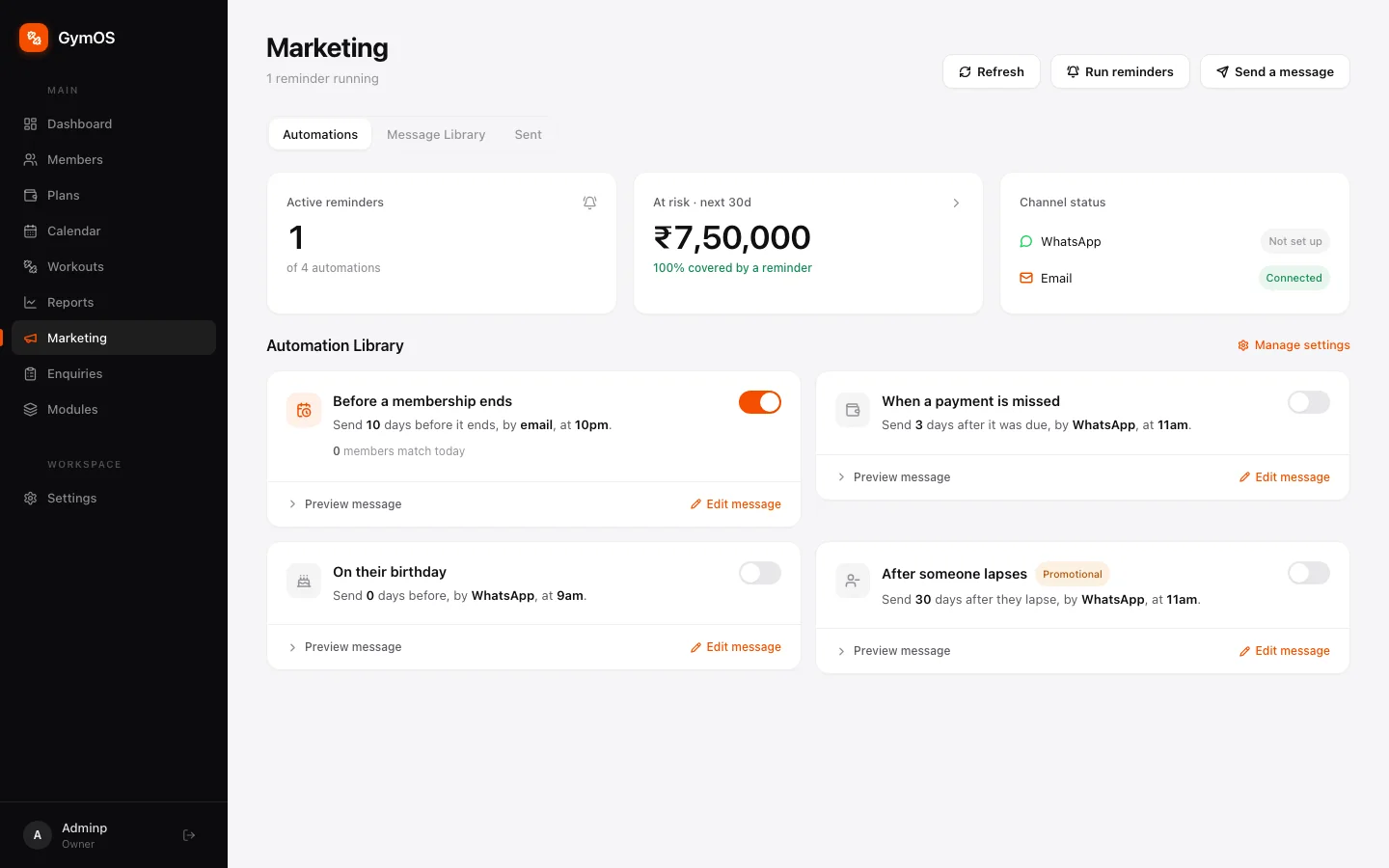
The Marketing page
- Active reminders — how many of your automations are switched on.
- At risk — the revenue tied to memberships ending in the next 30 days, and how much of it a reminder already covers. Click it for the breakdown between memberships ending and payments unpaid, with a shortcut to whichever still needs a reminder.
- Channel status — whether WhatsApp and Email are connected. Click either one to set it up.
Below them are three tabs:
- Automations — your reminder rules, in the Automation Library.
- Message Library — every saved message, plus Write a message for one-off copy.
- Sent — the delivery log (queued, delivered, read, failed) and a history of one-off broadcasts.
Manage settings, at the top right of the library, holds the set-once details: channel connections, sender name and reply-to address, quiet hours and opt-outs.
Automation Library
Each automation is a card with a plain-English summary and a switch. Flip the switch and it’s on — there’s no separate save.
Four come ready to use:
| Automation | What it does | Starts as |
|---|---|---|
| Before a membership ends | The one that saves renewals — most members simply forget. | 10 days before, by email, at 10pm |
| When a payment is missed | Chases an unpaid instalment for you. | 3 days after it was due, by WhatsApp, at 11am |
| On their birthday | Costs nothing, and members remember it. | On the day, by WhatsApp, at 9am |
| After someone lapses | A win-back message for members who left. | 30 days after, by WhatsApp, at 11am |
Preview message on any card shows exactly what members receive, whether the reminder is on or off.
Editing a reminder
Click Edit message (or Write this message if it’s still empty) to open the editor for that rule.
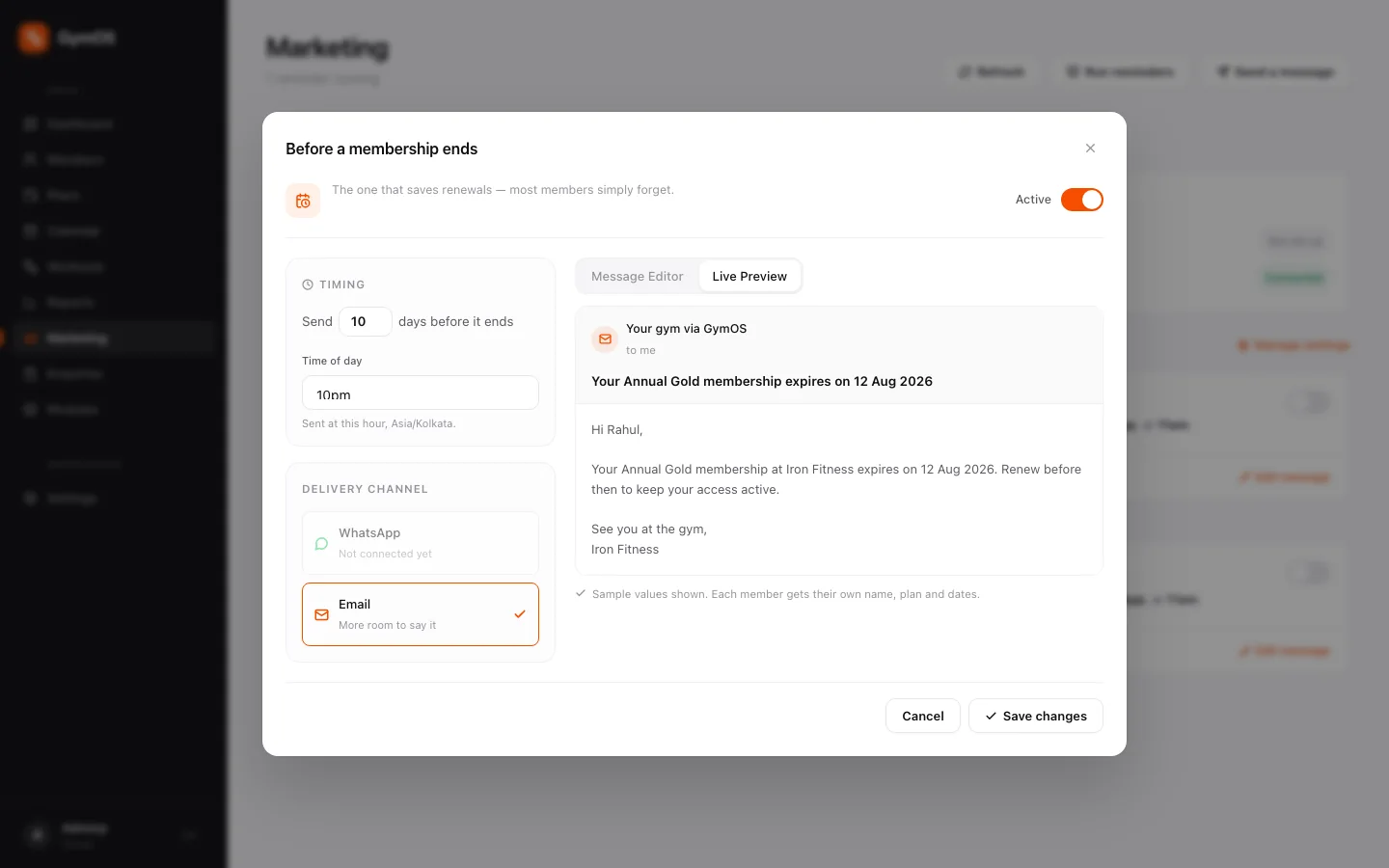
- Timing — how many days before or after, and the time of day. Times use your gym’s time zone.
- Delivery channel — WhatsApp or email.
- The message — write it in the Message Editor, then check the Live Preview tab. The preview fills in sample values; each member gets their own name, plan and dates.
- Click Save changes.
Follow-ups
Follow-ups is the manual side: the calls, the promises to ring back tomorrow, the notes against one member at a time. Open it from Settings → Operations → Follow-ups.
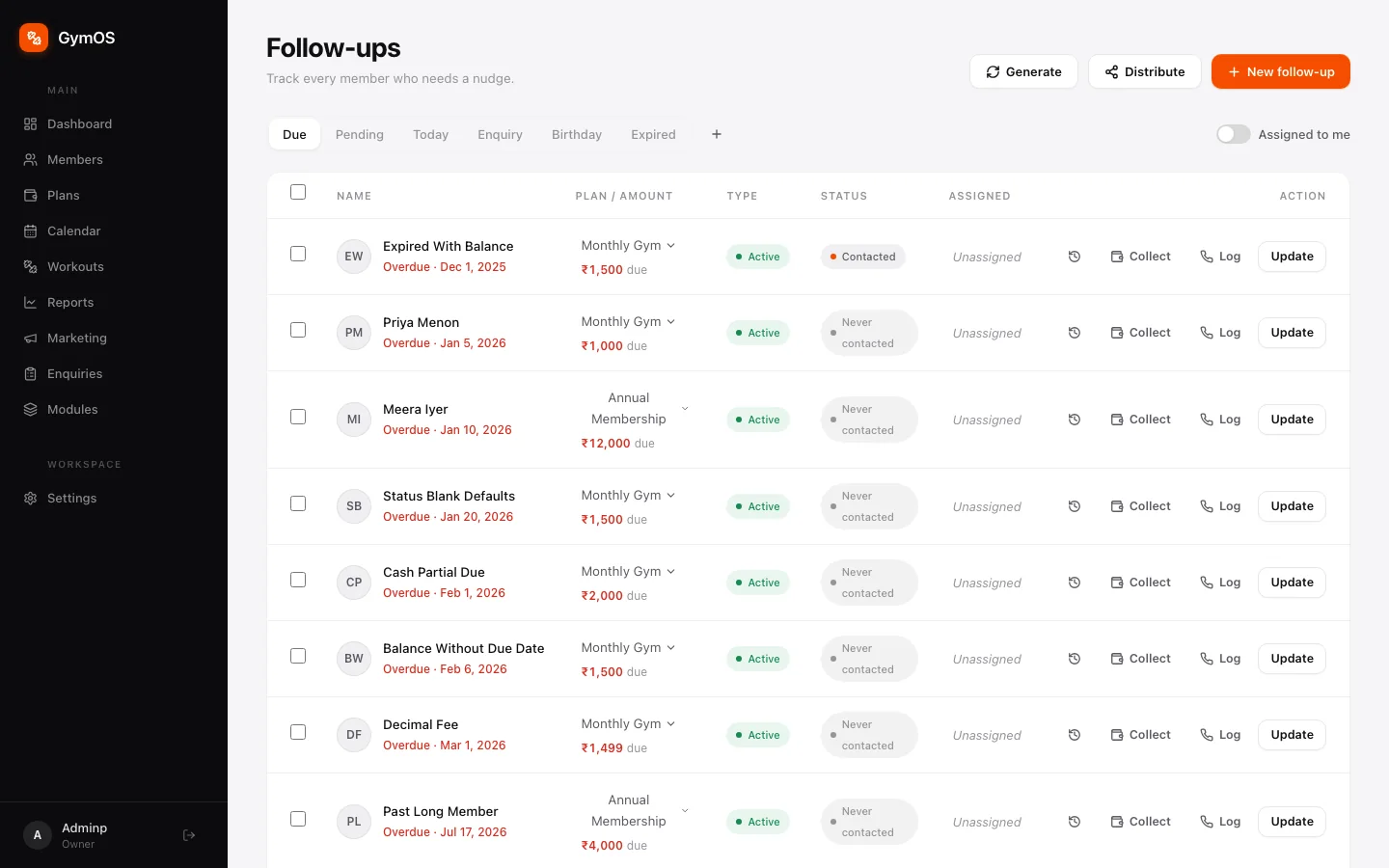
The tabs across the top — Due, Pending, Today, Enquiry, Birthday and Expired — sort members by why they need a nudge. Each row shows the plan and amount owed, the member’s status, whether they’ve been contacted, and who’s assigned.
From each row you can Collect a payment, Log what happened, or Update the follow-up. Use + New follow-up to add one by hand, Distribute to share unassigned follow-ups across your team, and Assigned to me to see only yours.
A member’s full follow-up history is also on the Follow-ups tab of their profile.
Think of it this way: Marketing is automatic and gym-wide; Follow-ups is personal and one member at a time.
Stuck on a step, or found something that doesn't match your screen? Email hello@svich.in.