GymOS guide
Workouts
Build a weekly training plan from a library of 359 demonstrated exercises, assign it to members, and see who is actually training.
GymOS only. StudioOS doesn’t include Workouts — a class-led studio programmes classes, not exercise plans.
Workouts is where you build training plans, hand them to members and watch the progress come in. Open it from the sidebar. It has four tabs: Overview, Templates, Exercises and Leaderboard.
The Overview tab
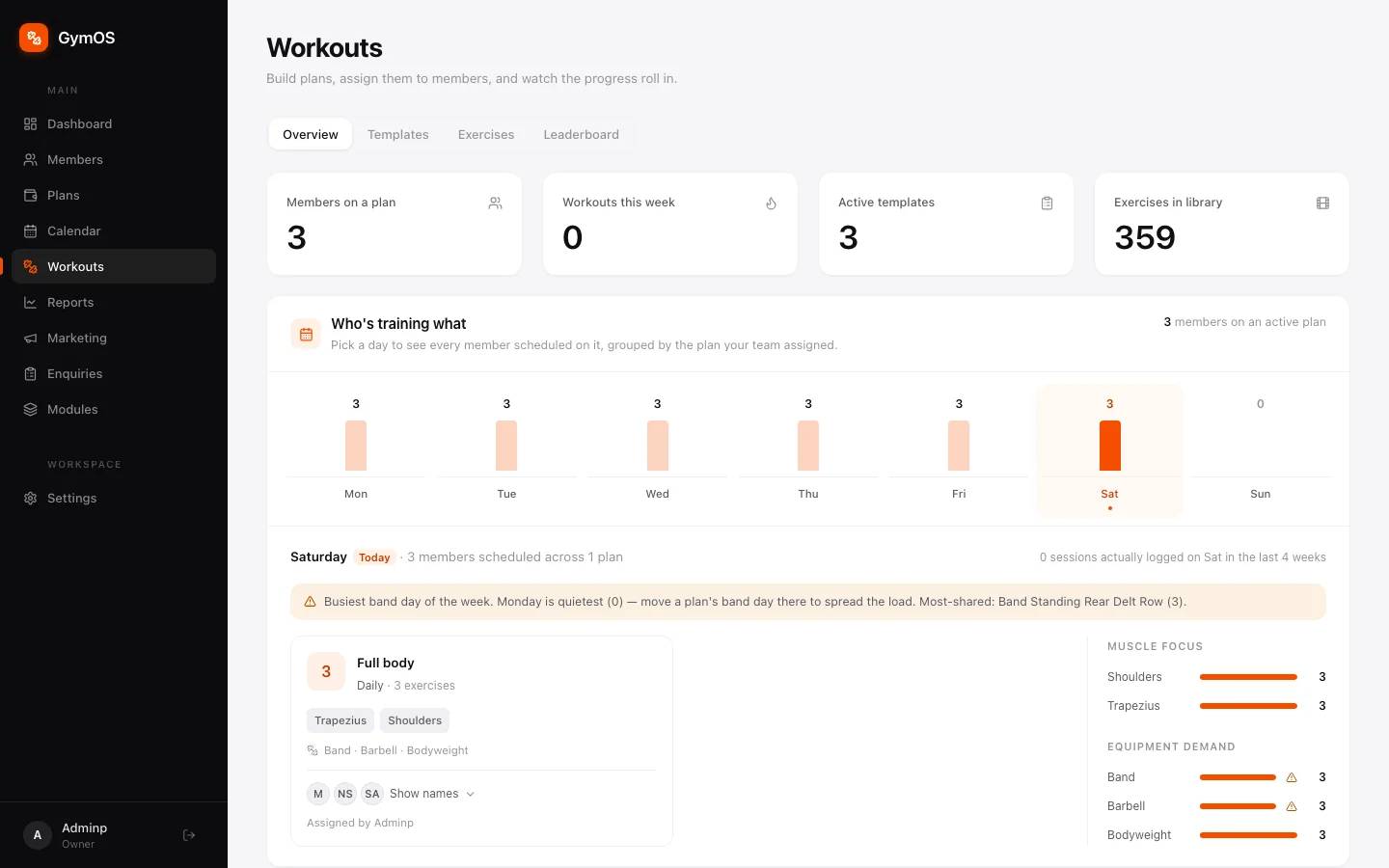
Four headline numbers — Members on a plan, Workouts this week, Active templates and Exercises in library — sit above Who’s training what.
Pick a day of the week to see every member scheduled on it, grouped by the plan your team assigned, along with:
- Muscle focus — which muscle groups that day’s plans work.
- Equipment demand — how much of each piece of kit that day needs, so you can spot, for example, that every band in the gym is spoken for on Saturday.
- Suggestions — plain-English tips for spreading the load, like “Monday is quietest — move a plan’s band day there.”
Creating a workout template
A template is a reusable plan — Push Pull Legs, 3 days — that you build once and assign to as many members as you like.
-
Go to Workouts → Templates.
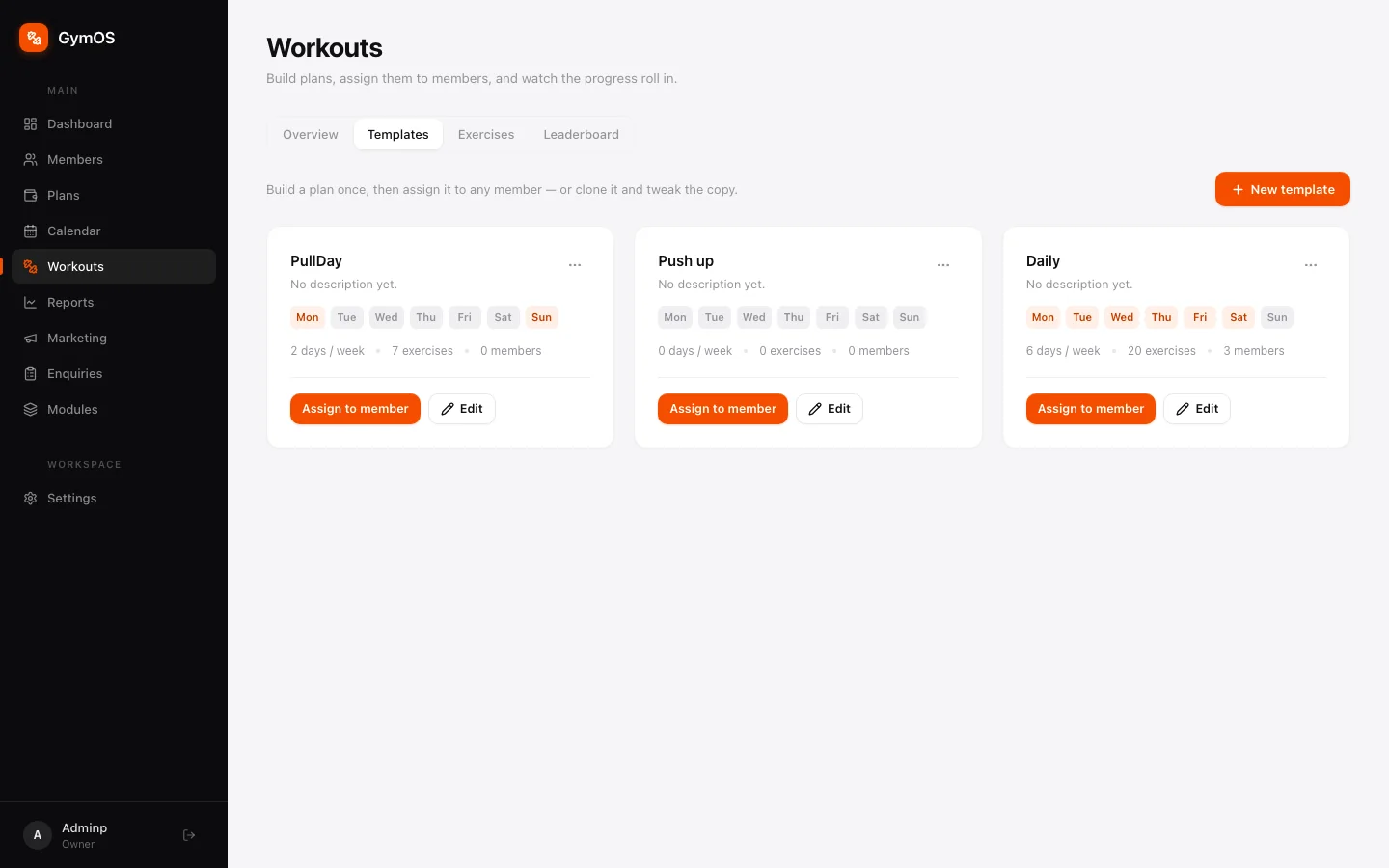
The Templates tab -
Click + New template.
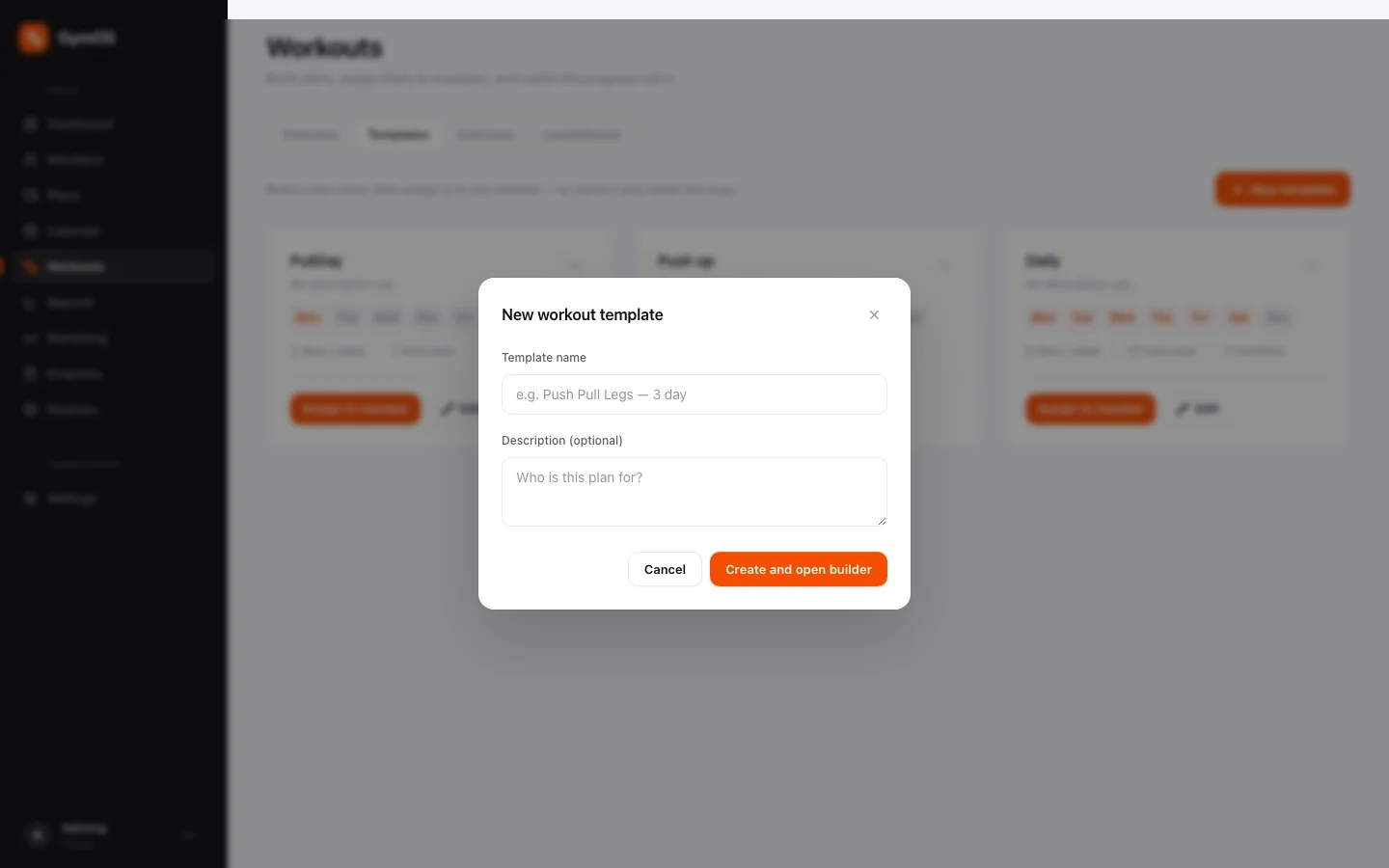
The New workout template dialog -
Give it a Template name and, optionally, a Description of who it’s for.
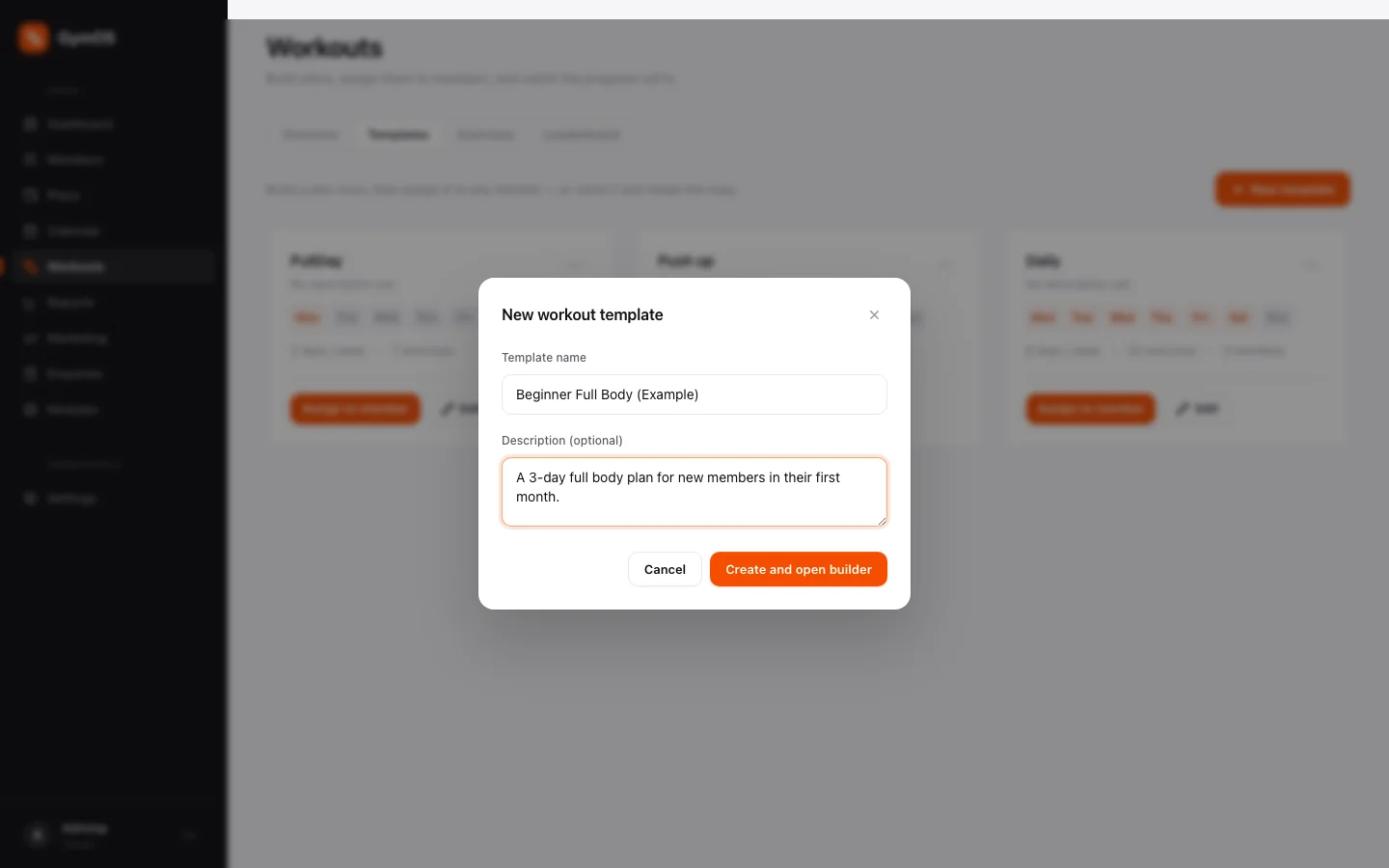
The dialog filled in -
Click Create and open builder.
The template builder
The builder lays out a week of training, one day at a time.
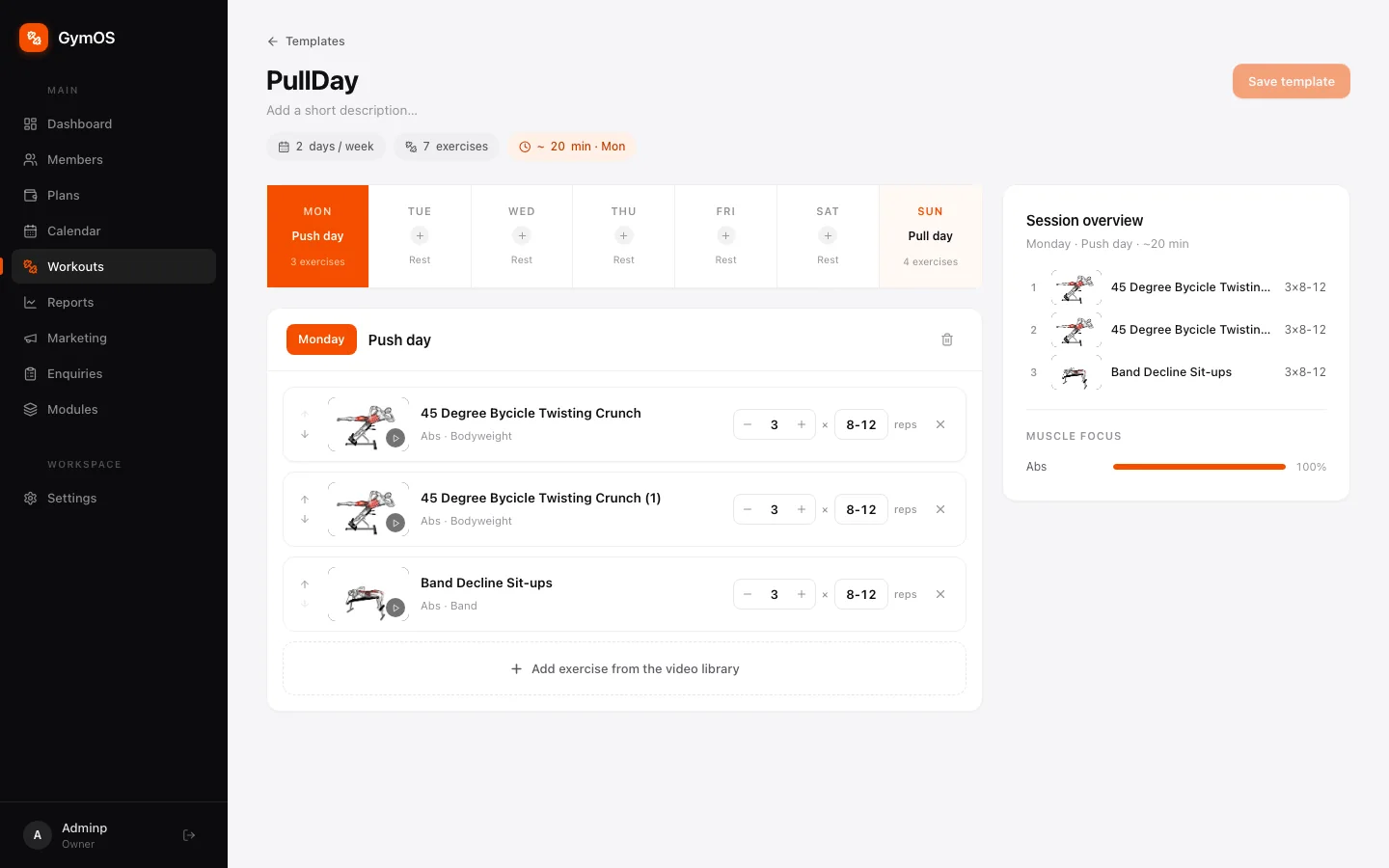
- The day strip across the top runs Monday to Sunday. Click a day to select it. Days with nothing planned say Rest — click the + on one to make it a training day and name it (Push day).
- Add exercises to the selected day with + Add exercise from the video library, then set sets × reps for each. Reorder with the arrows, or remove one with ✕.
- Session overview, on the right, sums up the selected day as you build: the exercises, an estimated duration and the muscle focus.
- Save template in the top-right corner saves your changes.
The exercise library
Every exercise you can add to a plan lives in one shared library, organised by muscle group, with an animated demonstration of each movement.
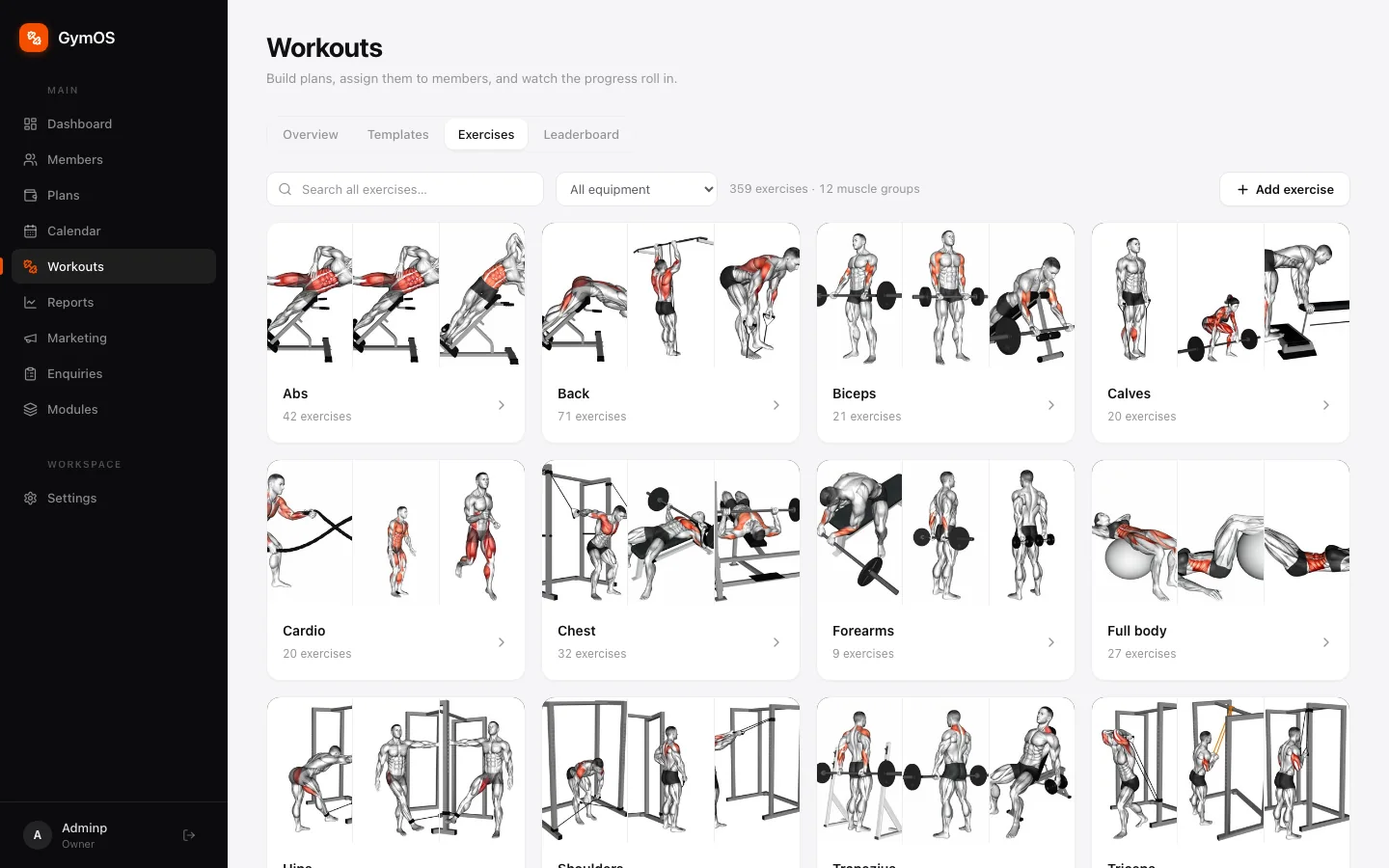
It ships with 359 exercises across 12 muscle groups. Search, filter by All equipment, or click + Add exercise to add one of your own.
Assigning a plan to a member
-
On a template card in Templates, click Assign to member.
-
Choose the Member and a Start date.
-
Tick Give the member a self-serve link if you want them to open the plan, watch the exercise videos, log their sets and track their progress on their own — even when no trainer is in.
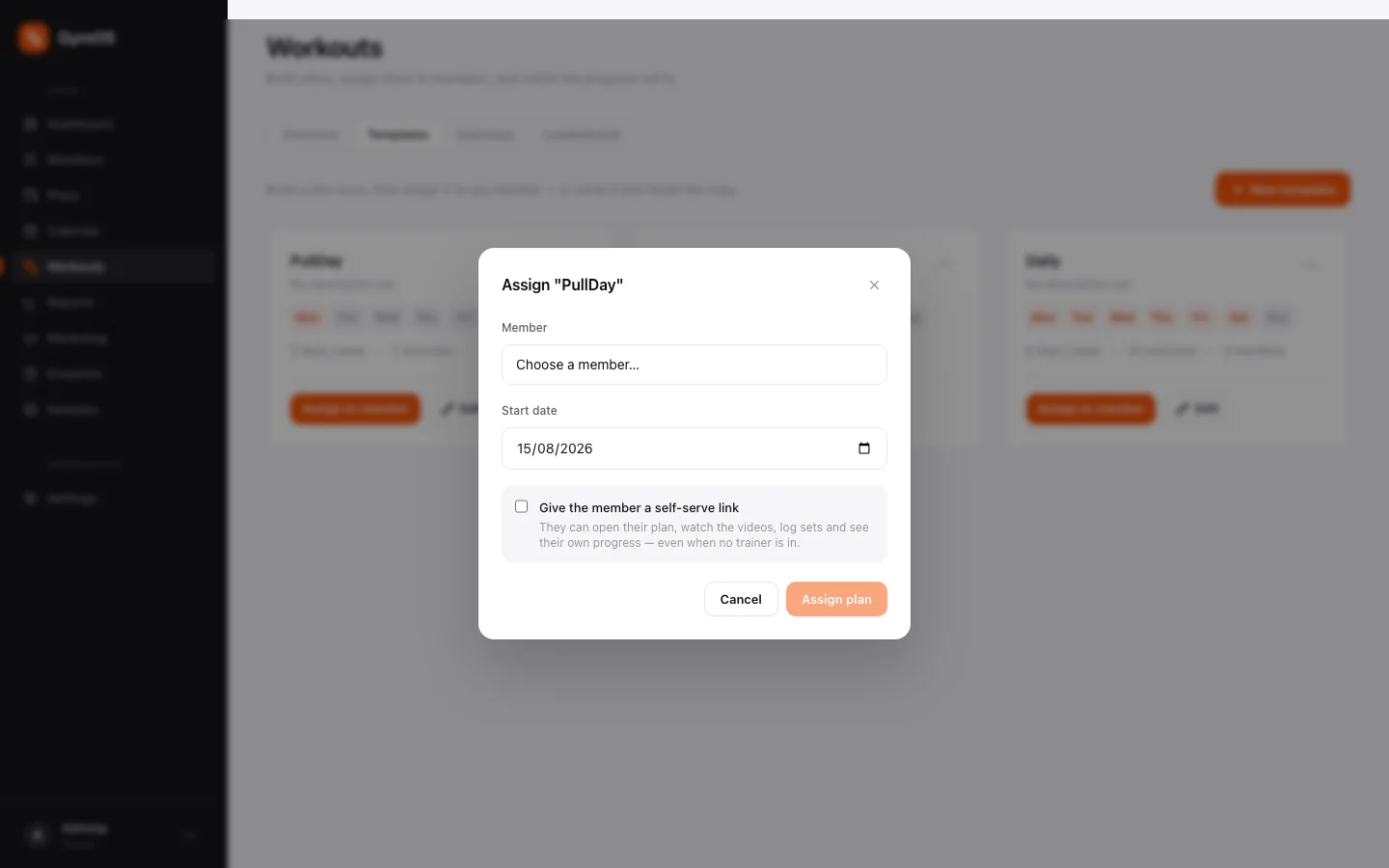
Assigning a plan to a member -
Click Assign plan.
The plan now appears on the member’s Workouts tab (see the member profile), in their member portal, and in the Overview tab’s day-by-day view.
To change a template later, click Edit on its card to reopen the builder. To make a variant for one member without touching the original, clone it from the card’s menu.
The Leaderboard
The Leaderboard ranks members by consistency — sessions completed against their plan — and then by total weight lifted, over the last 30 or 90 days.
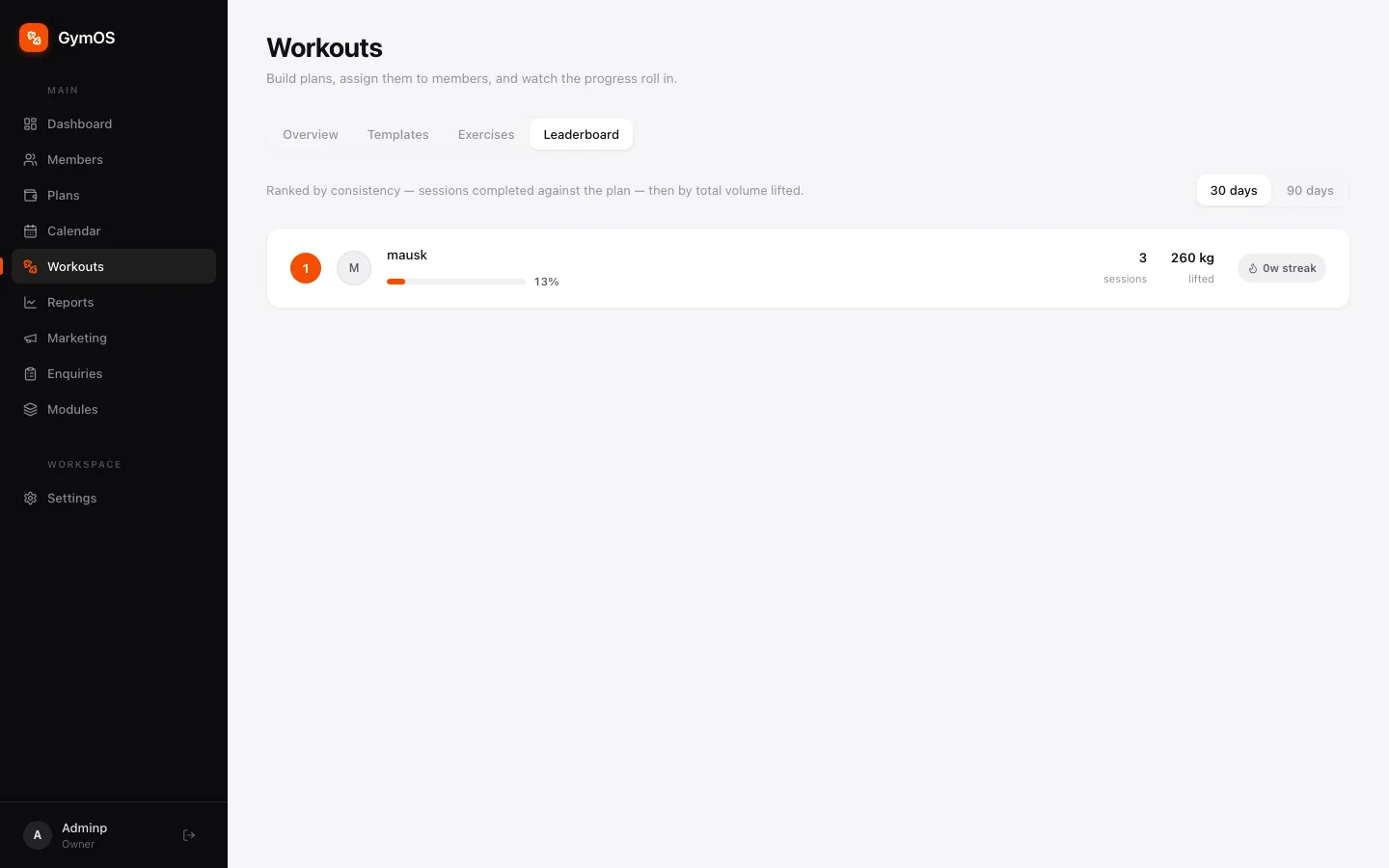
It’s an easy way to find your most committed members for a shout-out or a referral ask, and, just as usefully, the members whose training has quietly stopped.
Stuck on a step, or found something that doesn't match your screen? Email hello@svich.in.