GymOS guide
Member portal
Give every member a self-service app on their phone to check their plan, payments and workouts — and turn it on for existing members in one click.
The member portal is a lightweight, phone-first app for your members, separate from the staff app. Members use it to check their plan, their payments and their workouts without calling the front desk.
Turning it on
Go to Settings → Member Experience → Member Portal.
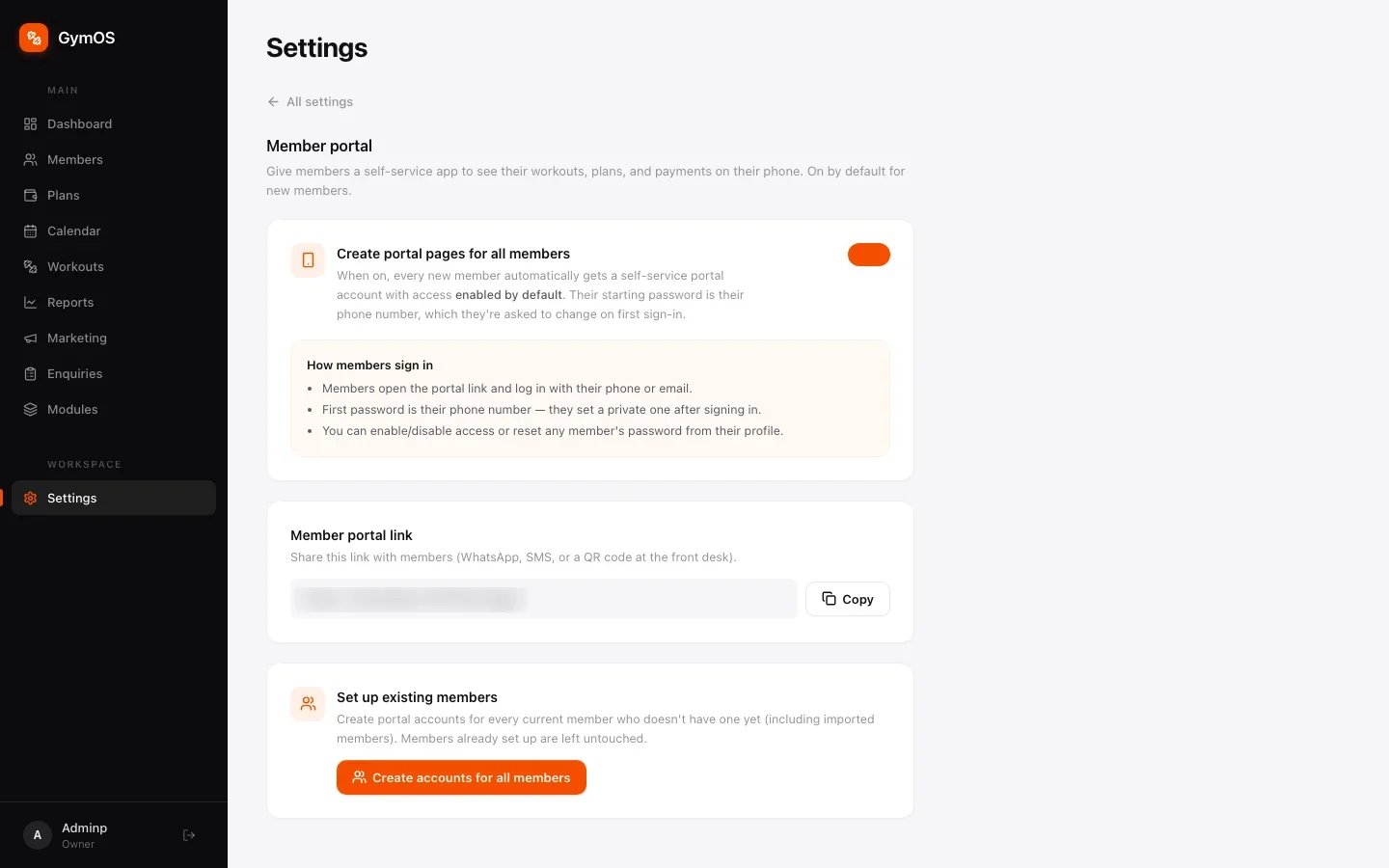
- Create portal pages for all members — when on (the default), every new member gets a portal account automatically.
- Member portal link — the link to share with members: app.svich.in/m/login. Send it on WhatsApp or SMS, or print it as a QR code for the front desk. Copy puts it on your clipboard.
- Set up existing members — Create accounts for all members gives a portal account to everyone who joined before it was switched on, including imported members. Members who already have one are left untouched.
You can also switch portal access on or off for one member from the Overview tab of their profile.
How members sign in
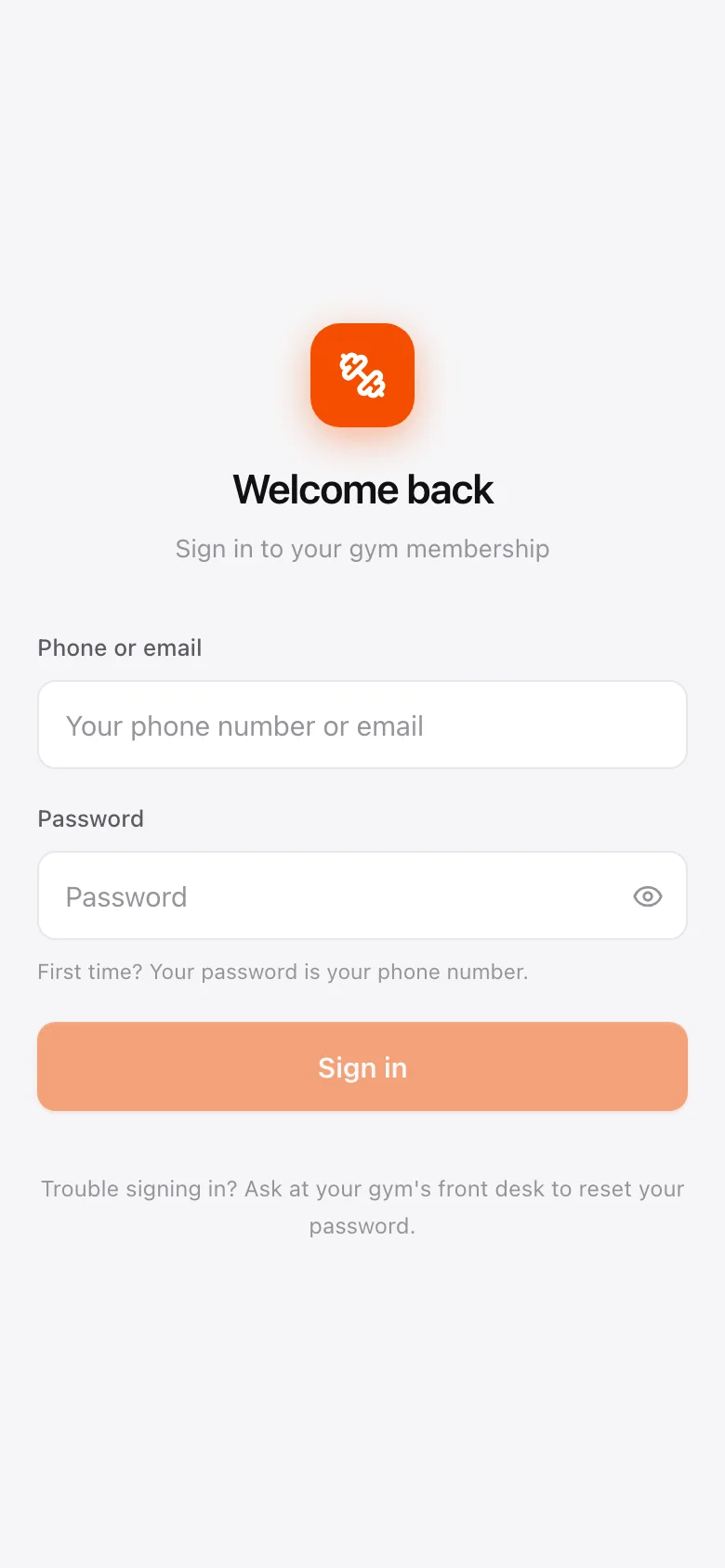
- Members sign in with their phone number or email.
- Their first password is their phone number. They’re asked to choose their own the first time they sign in.
- Locked out? Anyone on your team can reset a member’s portal password from that member’s profile.
What members see
Along the bottom of the portal:
- Home — a welcome with their current plan, price and expiry date up front.
- Plan — their full membership details and, on an instalment plan, the upcoming payment schedule.
- Payments — what they’ve paid so far and every past transaction.
- Workouts — any plan you’ve assigned them, with the exercise videos, so they can train on their own between sessions.
Their personal details and password are under the profile icon at the top.
Nothing needs entering twice. Assign a workout or record a payment in the staff app and the member sees it in their portal.
Stuck on a step, or found something that doesn't match your screen? Email hello@svich.in.