GymOS guide
Plans and payments
Create memberships and class-based plans, sell them to members, collect payments and instalments, manage freezes and renewals, and send invoices.
Money in GymOS moves through three connected pages: Plans (what you sell), Subscriptions (who bought what) and Transactions (every payment). A fourth, Commissions, tracks what you owe staff for the members they bring in.
Plans
Open Plans from the sidebar.
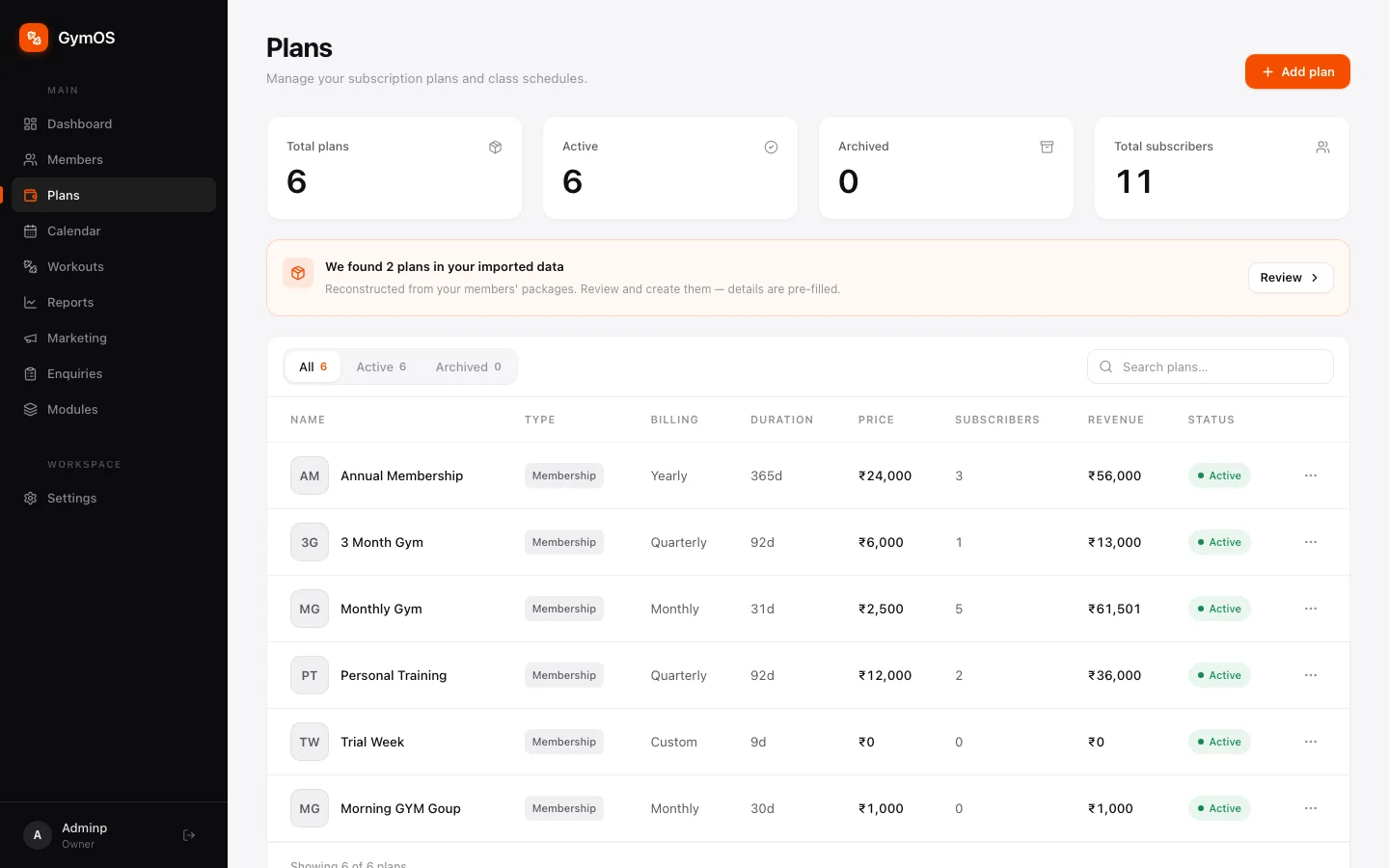
Each plan shows its type, billing, duration, price, number of subscribers, the revenue it has brought in, and its status. Switch between All, Active and Archived, or search by name.
If you’ve imported members, GymOS reads the packages in that data and suggests the plans it finds — We found 2 plans in your imported data. Click Review to create them with the details already filled in.
Creating a plan
-
Click + Add plan.
-
Fill in the form.
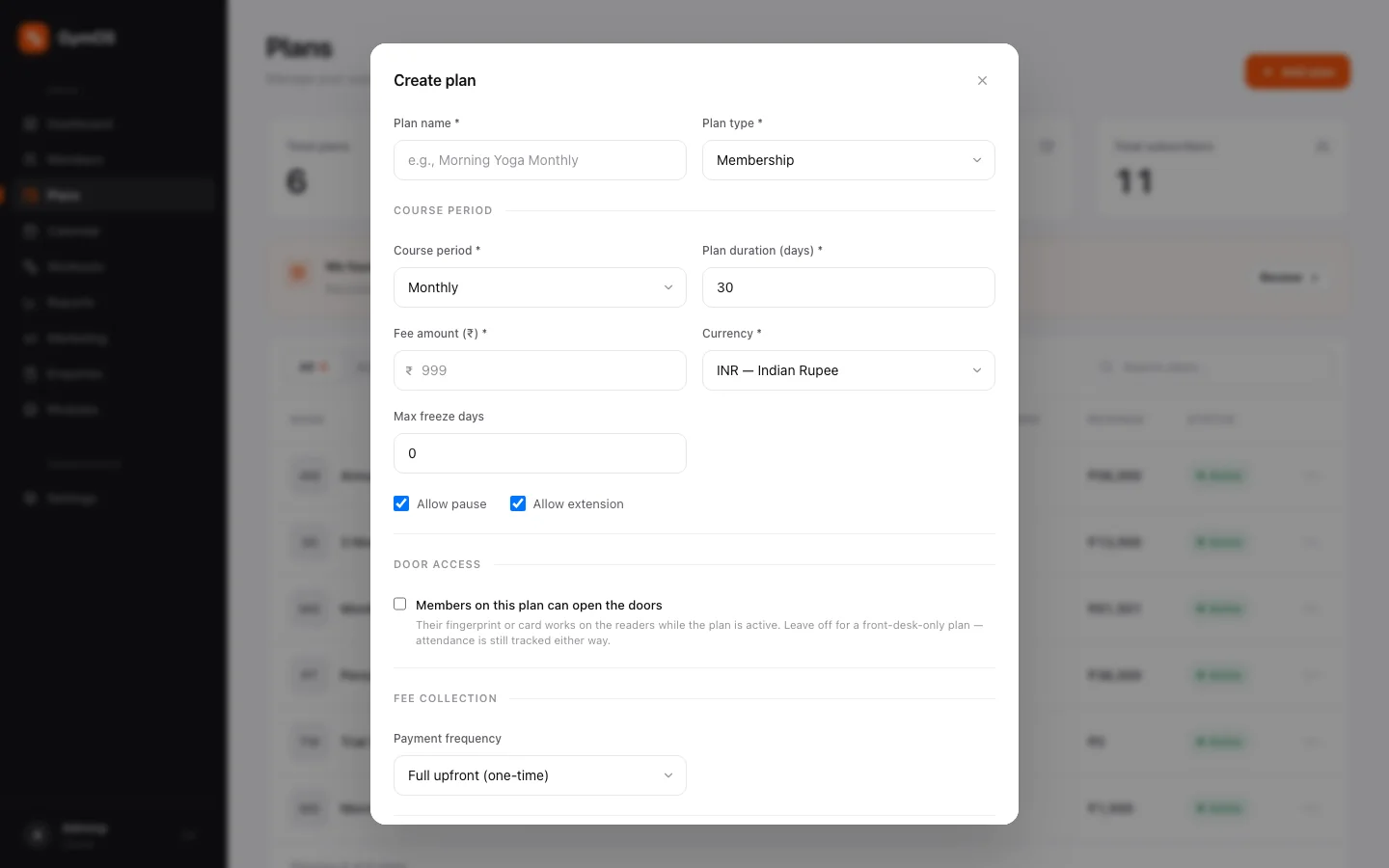
The Create plan form Section What to set Basics Plan name, and the Plan type: Membership, Personal training, Add-on, Class based or Session pack. Course period Monthly, Quarterly (3 months), Yearly or Custom, and the Plan duration in days. Pricing Fee amount and Currency, the Max freeze days allowed, and whether members may pause or extend. Door access With the door access add-on: whether members on this plan can open the doors with their fingerprint or card while it’s active. Leave it off for a front-desk-only plan — attendance is still tracked either way. Fee collection Full upfront (one-time), or Monthly, Quarterly or Yearly installments. -
Save. The plan is ready to sell.
To stop selling a plan without losing its history, archive it from the plan’s menu.
Class-based plans
Choose Class based as the plan type and the form changes: instead of just a duration and price, you set when the class runs and what members get for their money.
When the class runs
Click Pick times to open a week calendar. Each cell is one time the class runs — click to add or remove it. Hours already taken by another class show in grey, so you see a clash before you create one.
Because every time is its own cell, a class can run Monday, Wednesday and Friday at 6am, and Saturday at 8am. It doesn’t have to be the same hour every day.
What members get
One question, three answers:
| Answer | Use it for | What the member gets |
|---|---|---|
| Everything included | A course or an unlimited membership | Every class for the length of the plan, booked in automatically |
| A set number of classes | A pack, or a monthly allowance | The number you choose. A toggle picks In total (a one-off pack) or Every month (tops back up each renewal) |
| Pay each visit | Drop-ins | Nothing upfront — they pay each time they book |
Under the cards, one sentence spells out exactly what you’re about to sell — “10 Morning Yoga classes for ₹4,000, used on whichever days suit them. Unused ones expire when the plan ends.” If that isn’t what you meant, change the answer before saving.
Booking rules
Collapsed to one line with sensible defaults. Click Adjust only if you need to change them.
| Rule | Default | What it does |
|---|---|---|
| Free cancellation window | 12 hours | Cancel earlier than this and the class goes back into their balance |
| No-shows count as used | On | Booked and didn’t turn up? It still counts |
| Book ahead limit | 30 days | Stops one member booking out the whole term on day one |
| Open bookings at once | 3 | Stops a few members holding all the spots |
| Pause sessions when frozen | On | A frozen membership keeps its unused classes |
Rules are per plan, so a paid course can be stricter than a casual drop-in.
Two worked examples
Swimming, daily, billed on the 1st. Pick all seven days → Everything included → duration 12 months → Fee collection Monthly installments, collected on day 1. Members swim any day; the payment schedule bills on the 1st of every month.
Monthly batches. Pick the days the batch runs → Everything included → duration 30 days, paid upfront. Each member’s start date is set when you subscribe them, so whoever joins this week gets their own month, booked into the classes inside it.
Booked members and attendance for each session are in the Calendar.
Showing a plan on your public page
Every plan has a Show on public page switch. It’s off by default — most gyms have plans they’d never show a stranger, like staff rates or an old price someone is still on — so each one is opted in deliberately.
Switch it on and you can add a public description, since internal plan names are often shorthand. Class-based plans take their timetable with them. See Your public page.
Selling a plan to a member
- Open the member’s profile and click Add subscription.
- Select a plan.
- For a class-based plan, tick the sessions they’re coming to under Select sessions to book.
- If someone on your team referred them, choose that person under Referral (optional). With referral commissions switched on, their commission is filled in for you.
- Enter the payment details: in full or by instalment, the amount paid now, any Discount %, and the method — Cash, UPI, Card, Bank Transfer or Online.
- Save. A Payment recorded confirmation appears, where you can also email the member their invoice.
The Record a payment shortcut on the dashboard takes you to Subscriptions.
Collecting what’s owed
When a member has a missed instalment or a part payment outstanding:
- click View & pay on the Overview tab of their profile, or
- click Collect beside them in Follow-ups.
Enter the amount to settle and the method. Pay part of it and the rest stays on their outstanding balance.
Managing a subscription
Every subscription on a member’s Subscriptions tab has a ⋯ menu. An expired one also shows a Renew button.
| Action | What it does |
|---|---|
| Freeze | Pauses the membership between a Freeze from and Freeze until date, up to the plan’s max freeze days. |
| Restart | Starts a paused subscription again from a Restart date. |
| Extend | Moves the end date later — handy for a goodwill week. |
| Renew | Starts a new period on a date you choose. Any unpaid balance carries into the new cycle. |
| Cancel | Ends the subscription on a Cancellation date. |
| Delete | Removes a subscription added by mistake. |
Invoices
Choose Mail Invoice from a row’s ⋯ menu, or from the confirmation right after a payment, to email the member an invoice.
What the invoice looks like is set once, in Settings → Billing → Invoice Templates:
- Business details — your business address, Tax ID / GSTIN, logo URL and Invoice number prefix.
- Invoice design — an Accent color and a Footer note.
A live Invoice preview updates as you type.
Subscriptions
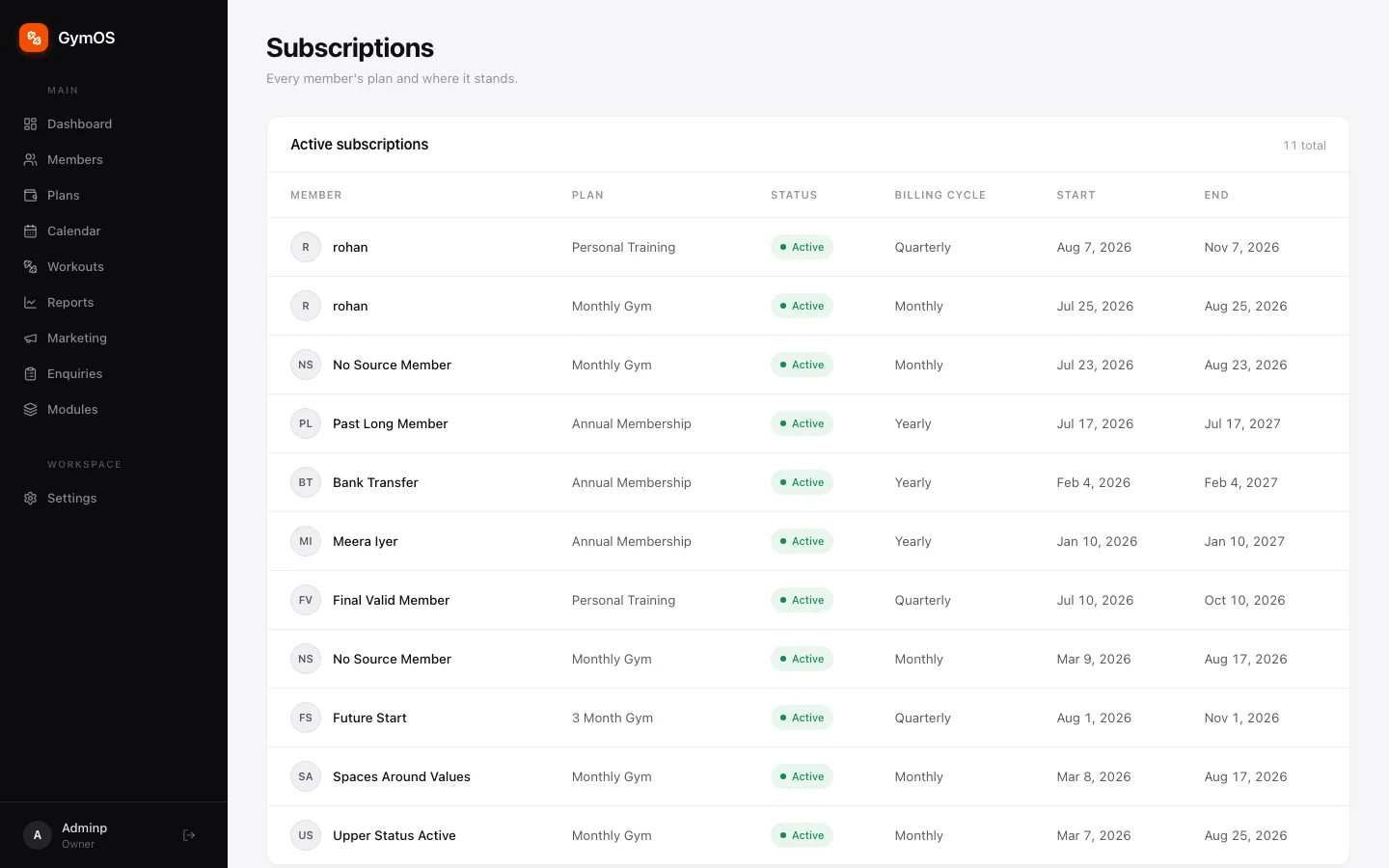
Subscriptions lists every member’s plan and where it stands — status, billing cycle, start and end dates. Open it from Settings → Billing → Member Subscriptions. It’s the renewals view: look down the end dates to see who needs a call.
Transactions
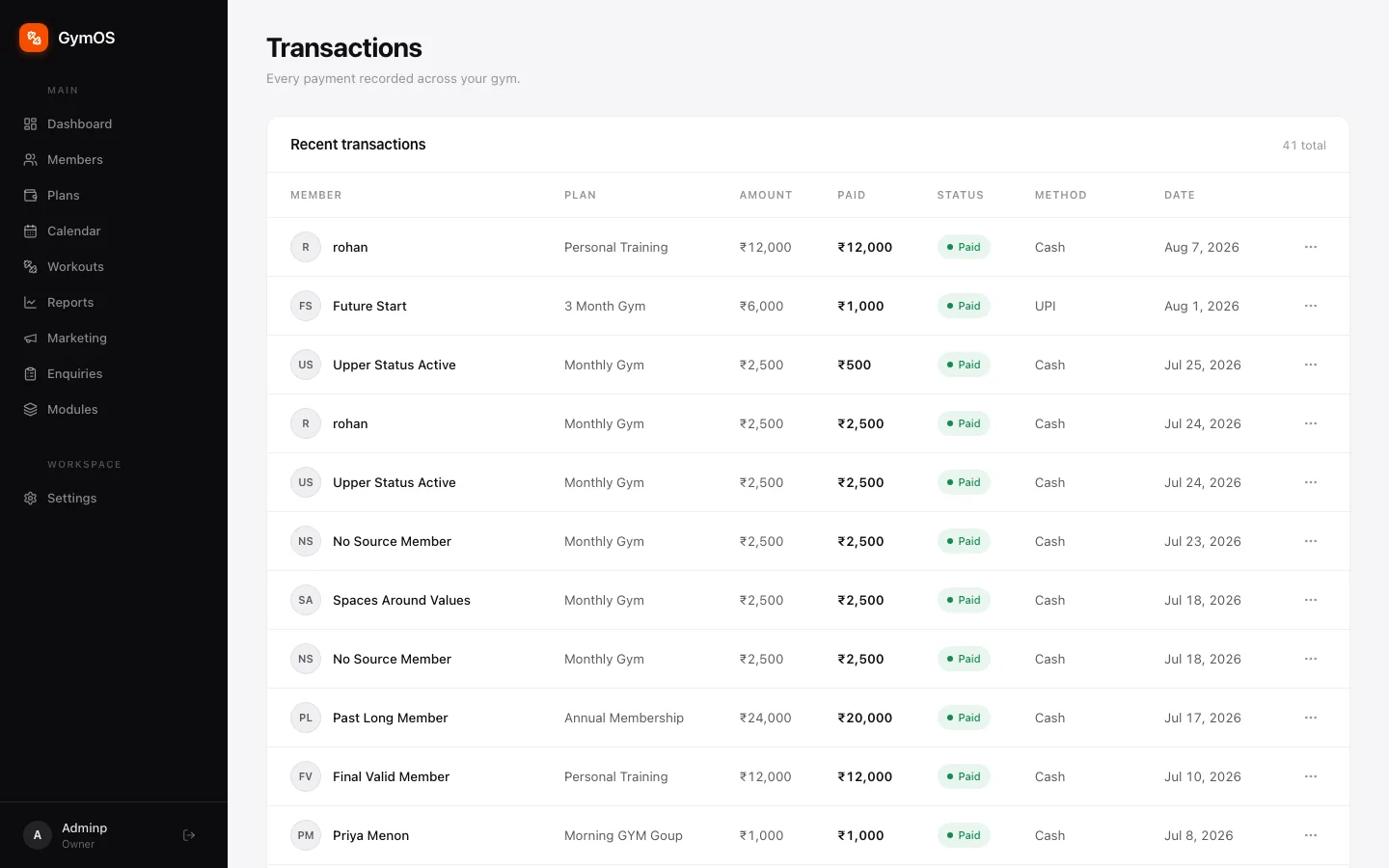
Transactions is the full payment ledger: every payment across the gym, with the amount due, amount paid, status, method and date. Open it from Settings → Billing → Transactions. Use it to reconcile the day’s cash and UPI, or pull a period’s revenue for your accountant.
Commissions
Commissions shows who’s bringing members in and what they’ve earned. Open it from Settings → Billing → Commissions Ledger.
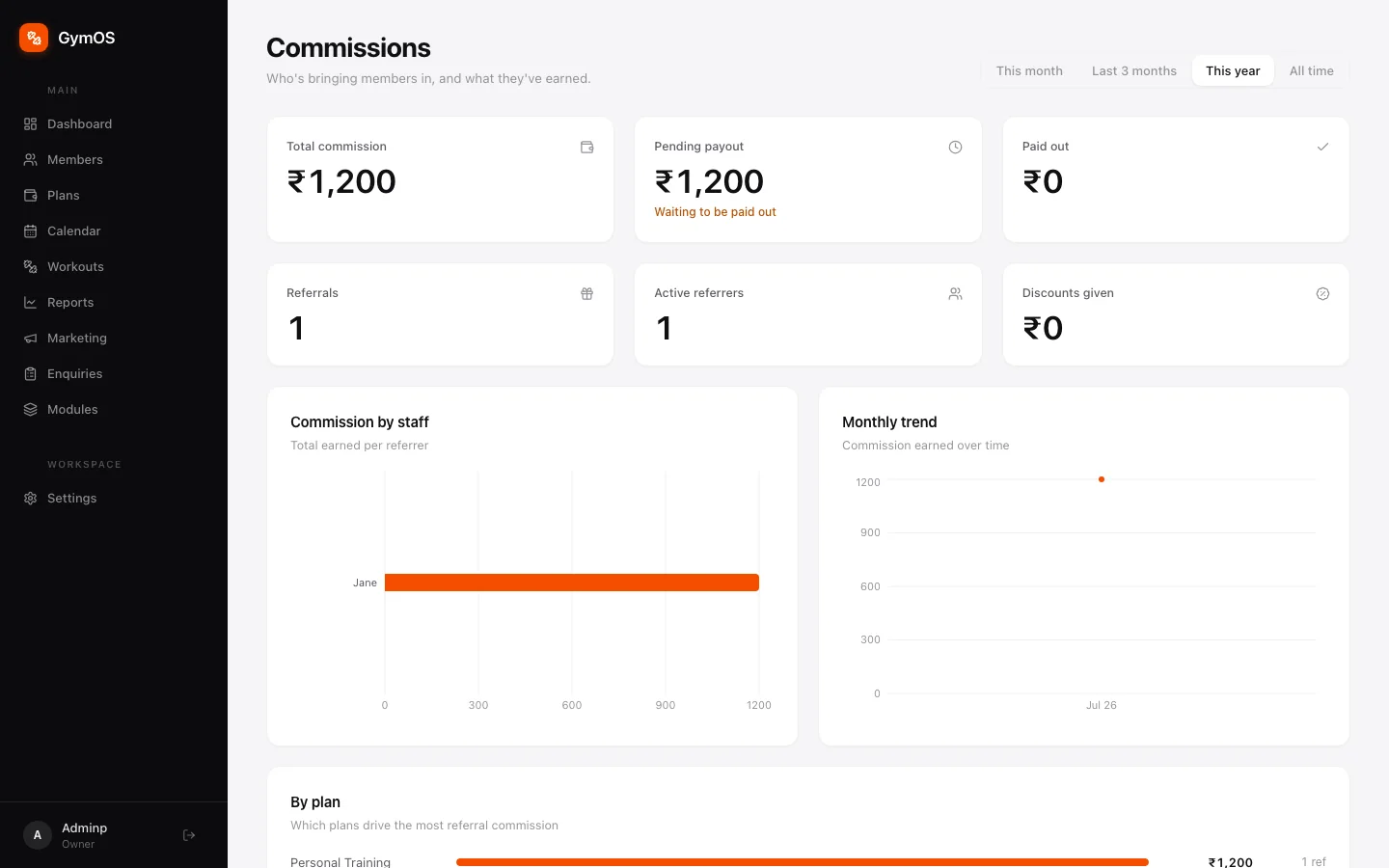
Totals across the top — Total commission, Pending payout, Referrals and Active referrers — over This month, Last 3 months, This year or All time, then charts for commission by staff member, by plan and by month.
Commissions are switched on and configured in Settings → Referrals & Commissions.
Stuck on a step, or found something that doesn't match your screen? Email hello@svich.in.