GymOS guide
Members
Register a new member in under a minute, find anyone with one-click filters, and manage each member's profile, portal access and door access.
Members is the master list of everyone who has come through your door — active members, lapsed ones, and leads who haven’t joined yet. Open it from the sidebar.
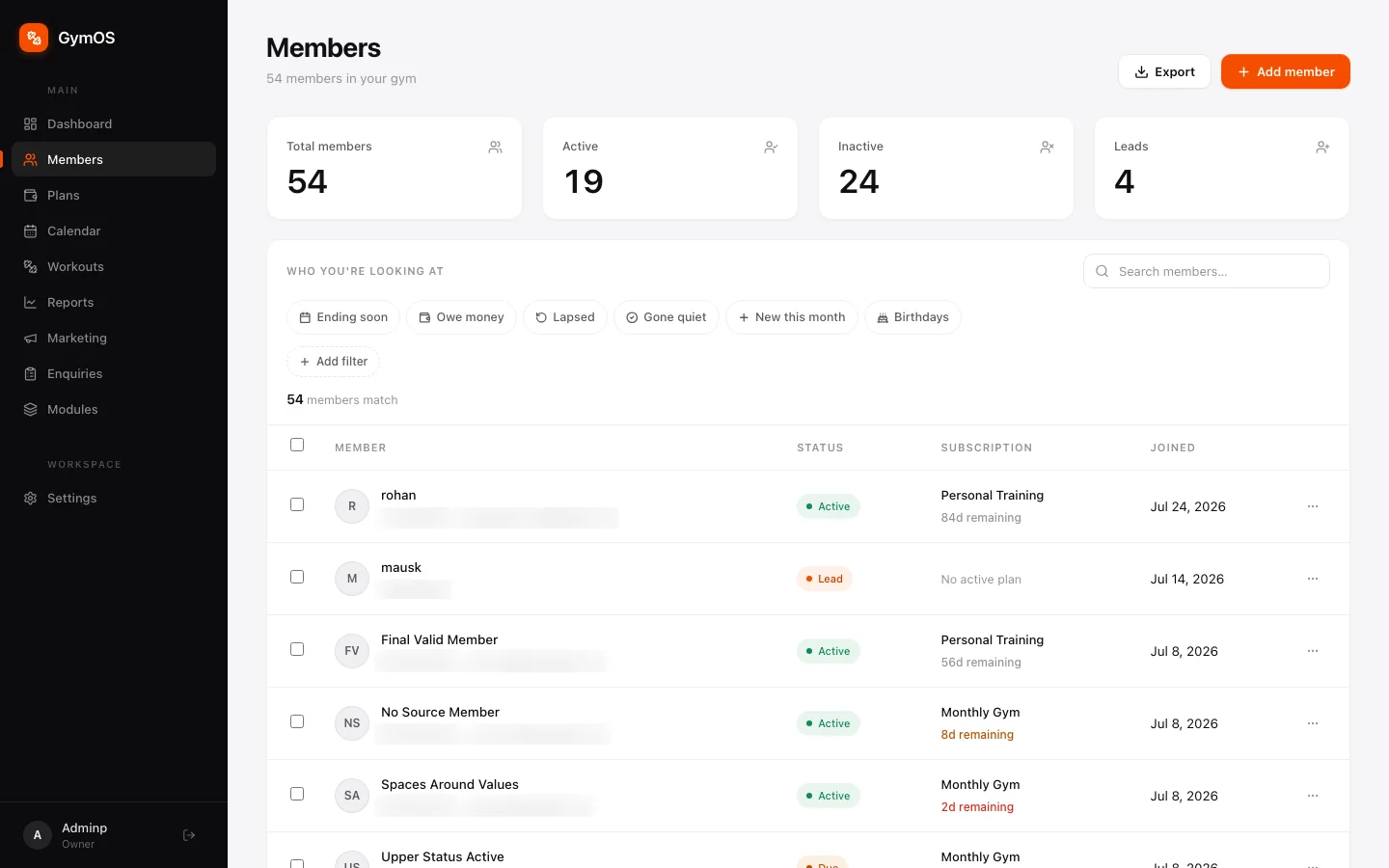
Finding a member
Four counters run across the top: Total members, Active, Inactive and Leads.
Under Who you’re looking at, one-click filters pull out the lists a front desk needs every day:
| Filter | Shows members who… |
|---|---|
| Ending soon | have a membership running out within 14 days |
| Owe money | have at least one payment past its due date |
| Lapsed | ended in the last 90 days and never came back |
| Gone quiet | used to come in but haven’t been seen for 30 days |
| New this month | joined in the last 30 days |
| Birthdays | have a birthday this month |
+ Add filter narrows the list further.
The search box on the right matches a name, phone number or email. Export downloads the list you’re looking at, for a spreadsheet or a backup.
Each row shows the member’s status (Active, Lead, Due or Inactive), their current plan with the days remaining, and when they joined. Click a row to open the profile, or use the ⋯ menu at the end of it for quick actions.
Registering a new member
-
Click + Add member in the top-right corner.
-
Fill in the form. Only Full name and Phone are required.
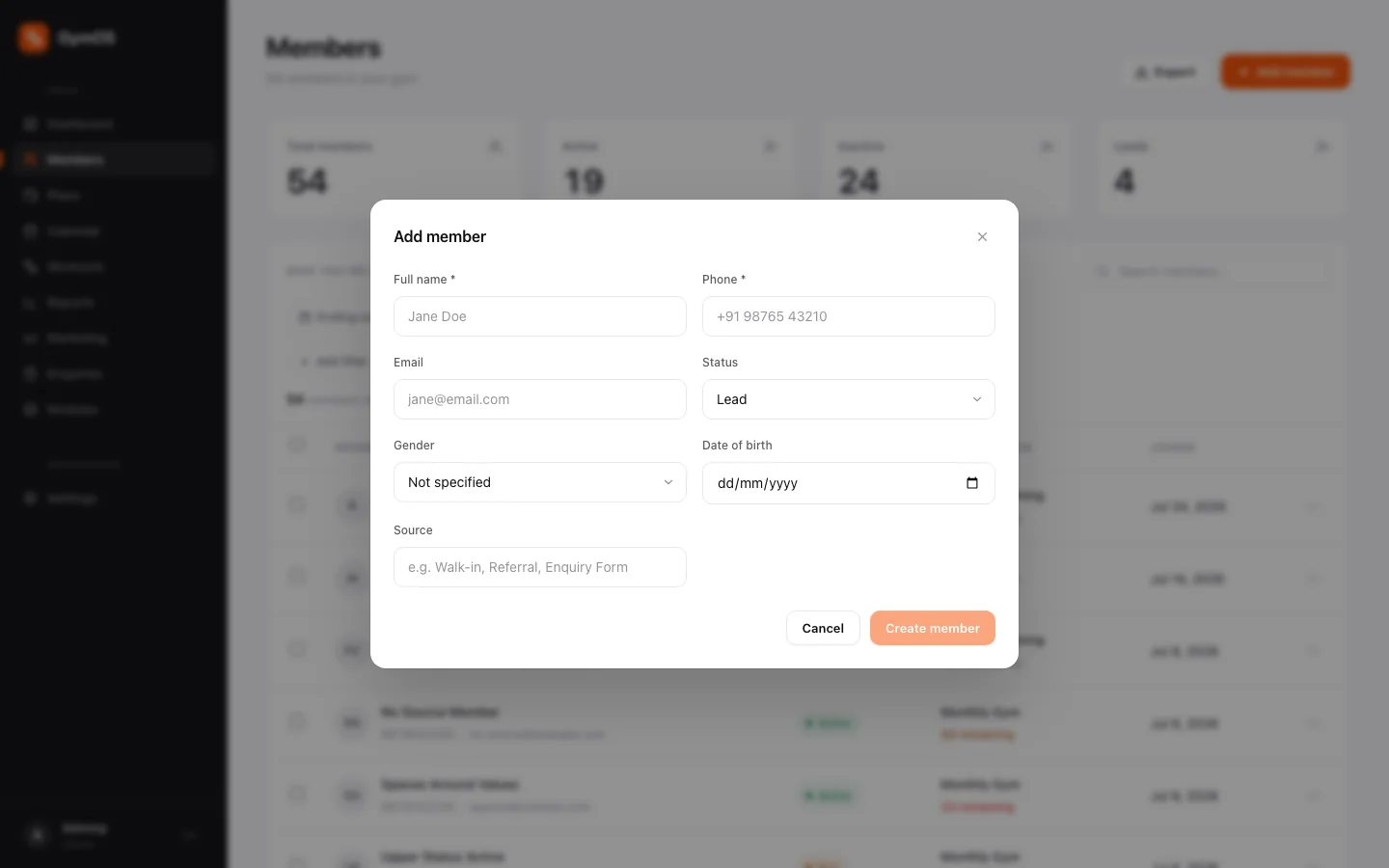
The Add member form Field Notes Full name Required. Phone Required. It’s also the member’s first password for the member portal. Email Optional, but needed for email reminders. Status Active, Inactive or Lead. Pick Lead for someone who walked in but hasn’t joined. Gender Optional. Date of birth Optional. Powers the Birthdays filter and the birthday reminder. Source Where they came from — Walk-in, Referral, Instagram. Worth filling in: it’s how you’ll later see what actually brings people in. Any custom fields you’ve added to the Members form appear here as well.
-
Click Create member.
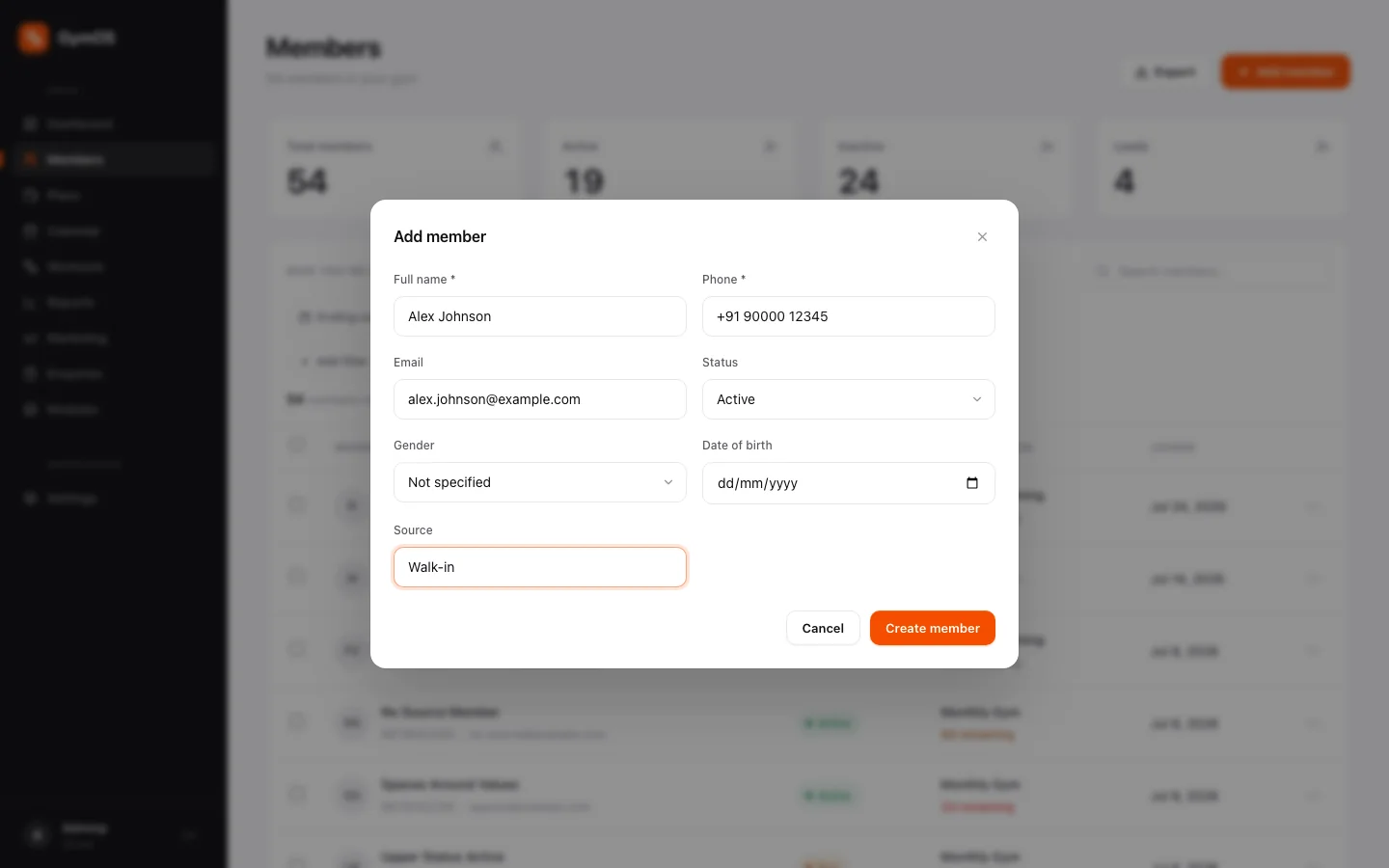
A completed Add member form
The member exists straight away — there’s no separate activation step. To put them on a membership and take their first payment, see Plans and payments.
The member profile
Click any row to open that member’s profile.
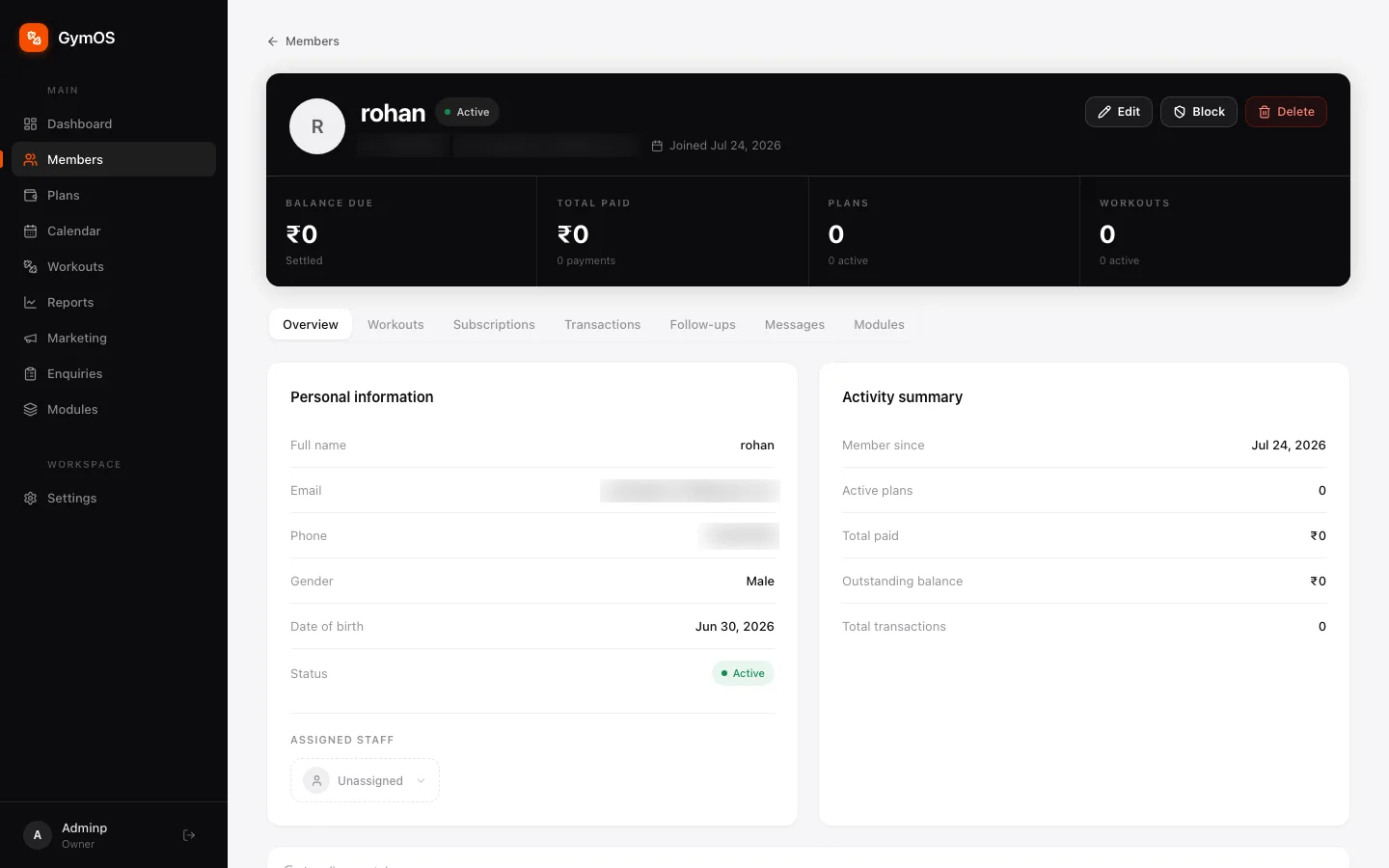
The strip across the top stays visible on every tab: Balance due, Total paid, active Plans and active Workouts, with Edit, Block and Delete beside them.
| Tab | What’s on it |
|---|---|
| Overview | Personal details, the assigned staff member, an activity summary, portal access and door access. |
| Workouts | Every workout plan assigned to them, with progress. See Workouts. |
| Subscriptions | Every plan they’ve been on, past and present. |
| Transactions | Every payment recorded against them. |
| Follow-ups | Notes and reminders your team has logged for them. |
| Messages | The WhatsApp and email messages they’ve been sent. |
| Modules | Records from your custom modules linked to them — PT sessions, diet plans and so on. |
If the member has an upcoming or overdue payment, it shows on the Overview tab with a View & pay button.
Member portal access
The Overview tab has a switch for self-service access. Turn it on and the member can sign in to their own member portal to see their plan and payments.
Fingerprint and door access
Add-on. This panel appears when your gym has biometric door access.

- Click Add fingerprint. GymOS issues the member a device ID and sends it to every door reader at once.
- Ask the member to scan their finger at the reader to finish enrolling.
Clicked it by mistake, or the reader was offline? Until someone has actually scanned a finger, face or card against that ID, the button reads Cancel — it undoes everything and frees the ID for reuse.
Once something has been enrolled, the button becomes Revoke. Revoking keeps the record, so you can Restore it later.
You don’t have to remember to remove access when someone stops paying. Once a membership has lapsed past your grace period, GymOS removes that member from every reader automatically.
Editing, blocking and deleting
- Edit opens the same form as Add member, filled in with their current details.
- Block stops a member from using your services — for unpaid dues, say. You can add a reason, and unblock them later.
- Delete removes the member. It can’t be undone, so you’re asked to confirm first.
Stuck on a step, or found something that doesn't match your screen? Email hello@svich.in.