StudioOS guide
Getting started
Create your StudioOS account, sign in, read the dashboard, and reach any page or record in seconds with search.
StudioOS is the studio edition of Svich, built for yoga, dance, pilates, zumba and other class-led businesses. This guide takes you from creating an account to finding your way around.
About the screenshots. StudioOS and GymOS are one app, so many screenshots in these guides were taken on a GymOS account. On yours, the sidebar says StudioOS and has no Workouts item.
Creating your account
Open app.svich.in/studio. One form creates both your login and your studio.
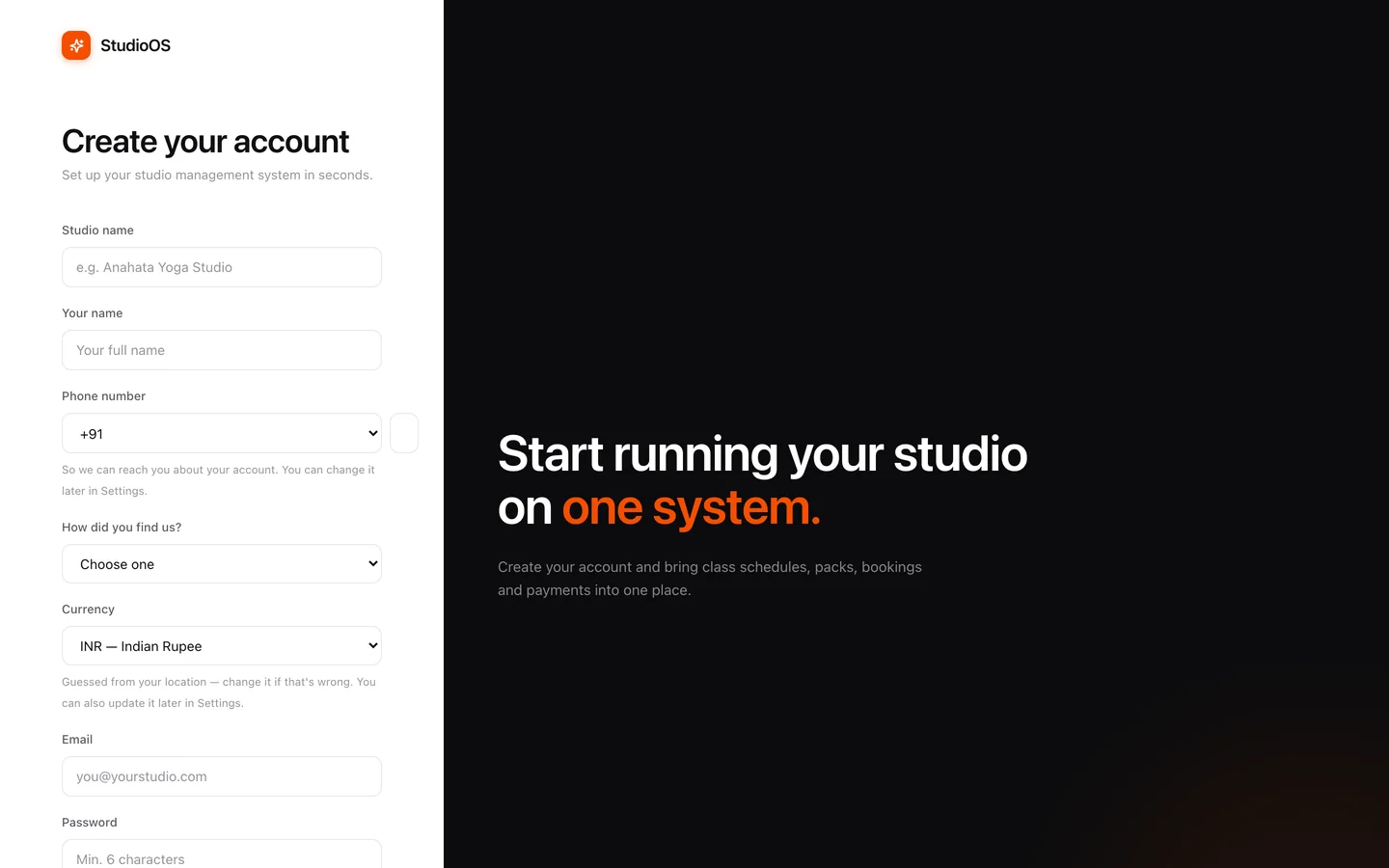
| Field | What to enter |
|---|---|
| Studio name | Your business name, as your students know it. |
| Your name | You become the account’s Owner — the one role that can always see everything. |
| Phone number | Choose the country code, then your number. It’s how we reach you about your account, and you can change it later in Settings. |
| How did you find us? | Where you heard about Svich. |
| Currency | Guessed from your location. Change it now if it’s wrong; you can also update it later in Settings. |
| Email and Password | Your staff login. The password needs at least 6 characters. |
StudioOS or GymOS?
The address you sign up at decides the product: /studio creates a StudioOS account and /gym creates a GymOS one. If you start from app.svich.in/register, the form asks which you’re setting up.
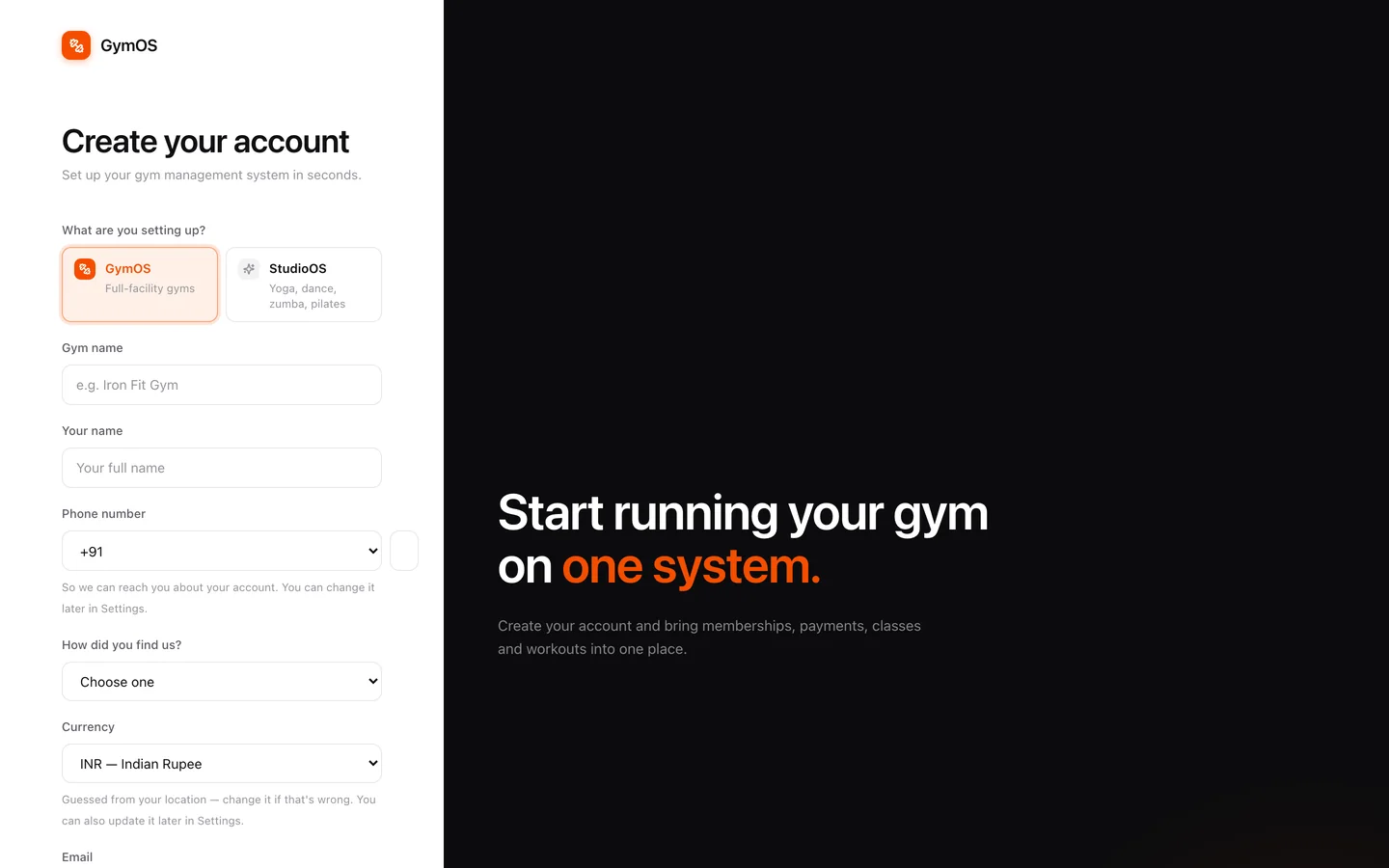
The choice is made once. If your studio later adds a weights room, you don’t need a second account — ask us to switch the extra modules on.
Signing in
Staff sign in at app.svich.in/login with their email and password. The screen says Svich because it’s the shared door to both products; once you’re in, your sidebar says StudioOS.
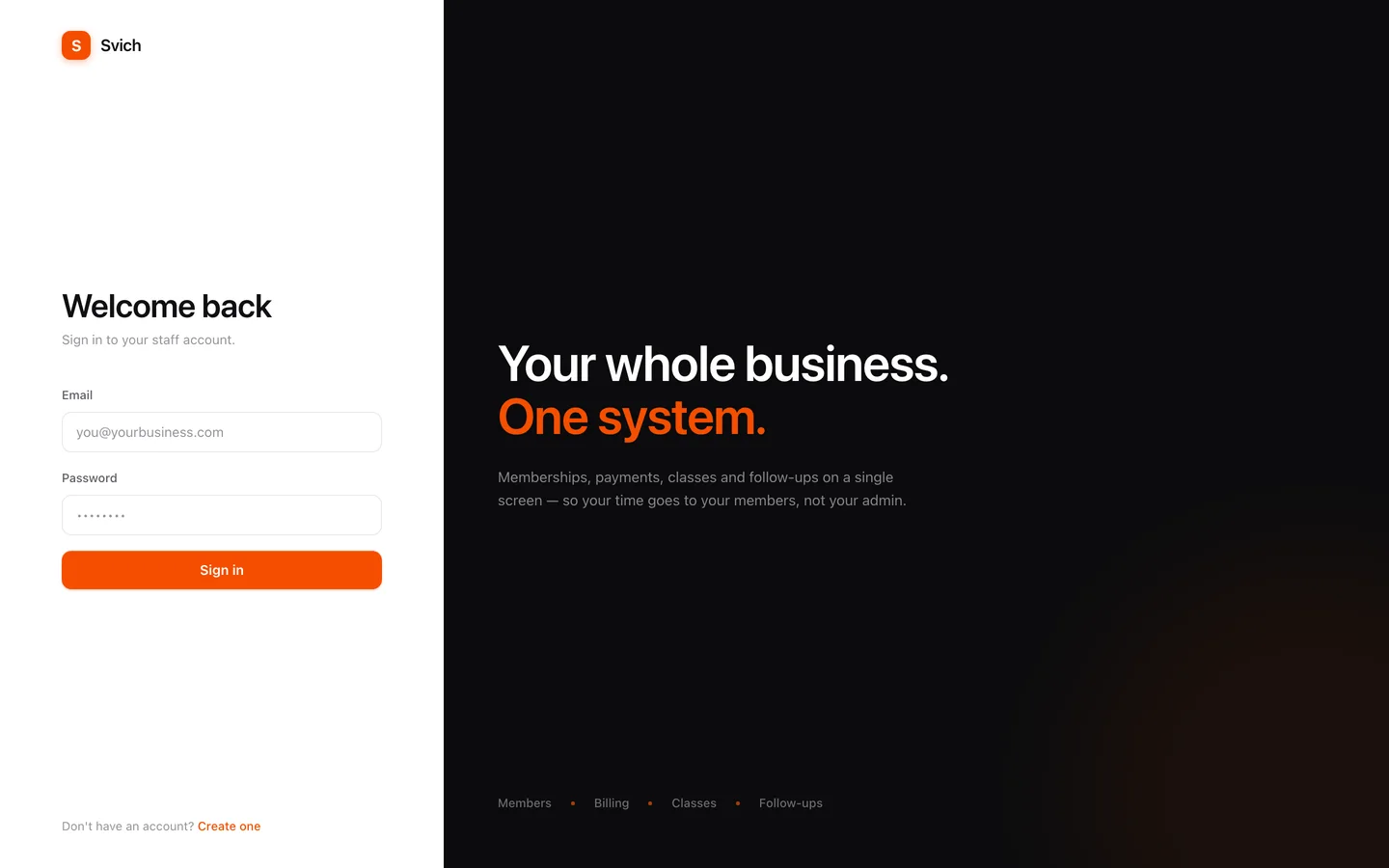
Your students never use this screen. They have their own member portal.
The dashboard
Signing in takes you to the Dashboard, a one-screen summary of how the studio is doing.
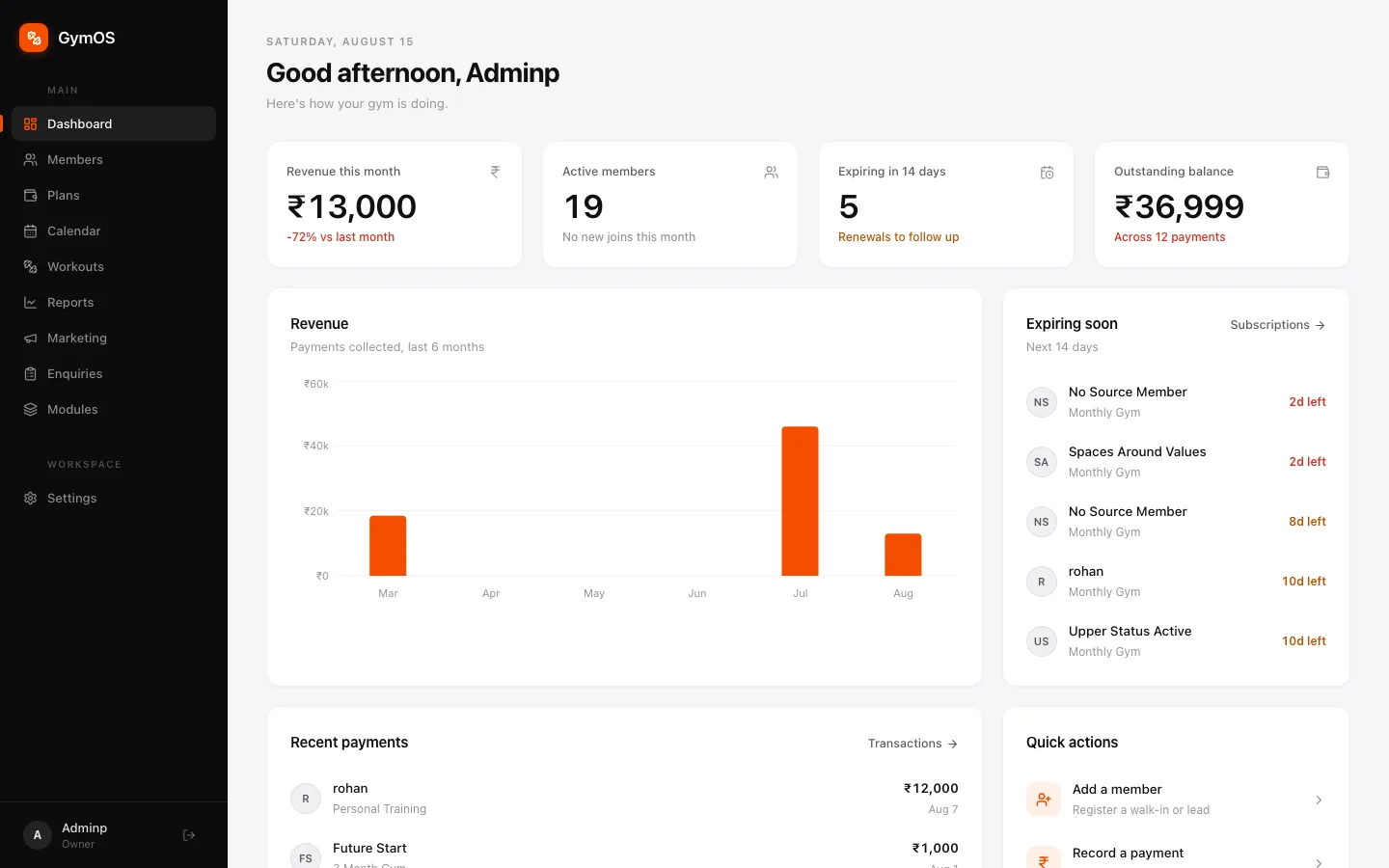
From top to bottom:
- Four headline numbers — Revenue this month (with the change on last month), Active members, members Expiring in 14 days, and the Outstanding balance across unpaid payments.
- Revenue — payments collected over the last six months.
- Expiring soon — members whose plans or packs end in the next 14 days. These are your renewal conversations.
- Recent payments — the latest transactions. Transactions → opens the full ledger.
- Quick actions — Add a member and Record a payment.
Finding your way around
The dark sidebar on the left is on every screen, in two groups:
- Main — Dashboard, Members, Plans, Calendar, Reports, Marketing, Enquiries, Public page and Modules. Any custom modules you create are listed here too.
- Workspace — Settings, the hub for everything else: Team, Attendance, Subscriptions, Transactions, Commissions, Follow-ups, Imports and more. See Settings.
The two you’ll live in are Plans, where your classes and packs are set up, and Calendar, where every session and its bookings sit. Start with Classes and class packs.
Some items only appear when they apply. Marketing needs the reminders add-on and Attendance the attendance add-on. Your role matters too: an instructor with the Trainer role doesn’t see Transactions, for example. See Roles and access.
Search anything
Press ⌘ K on a Mac or Ctrl K on Windows from any screen, or click the search bar at the top of the page. One box finds both pages and records.
Finding a page
Type the name of anything in the app and search shows you where it lives:
| You type | You get |
|---|---|
tran |
Settings › Billing › Transactions |
permissions |
Settings › Security & Access › Roles & Access |
csv |
Settings › Data & Reports › Imports |
payments |
Settings › Billing › Transactions |
Everyday words work too — staff finds Team Management, renewals finds Follow-ups.
Finding your records
Type two or more characters and search also looks through your studio’s own data:
| Group | What it matches |
|---|---|
| Members | Name, phone number, email |
| Transactions | Invoice number, payment reference, who paid |
| Plans | Plan name |
| Team | Staff name, email |
| Classes | Class name, instructor |
| Enquiry forms | Form name, description |
| Modules and Records | Your custom modules and anything stored in them |
Pick a result to go straight there. Use ↑ ↓ to move, Enter to open and Esc to close.
Search only returns what your role can already open, and amounts aren’t searchable — look a payment up by the member’s name, the invoice number or the reference instead.
Stuck on a step, or found something that doesn't match your screen? Email hello@svich.in.