StudioOS guide
Team and roles
Add staff logins for managers, instructors, front-desk staff and accountants, and decide exactly which pages each role can open.
Adding your team
Team lists everyone with a staff login to your account. Open it from Settings → Security & Access → Team Management, or press ⌘ K and type staff.
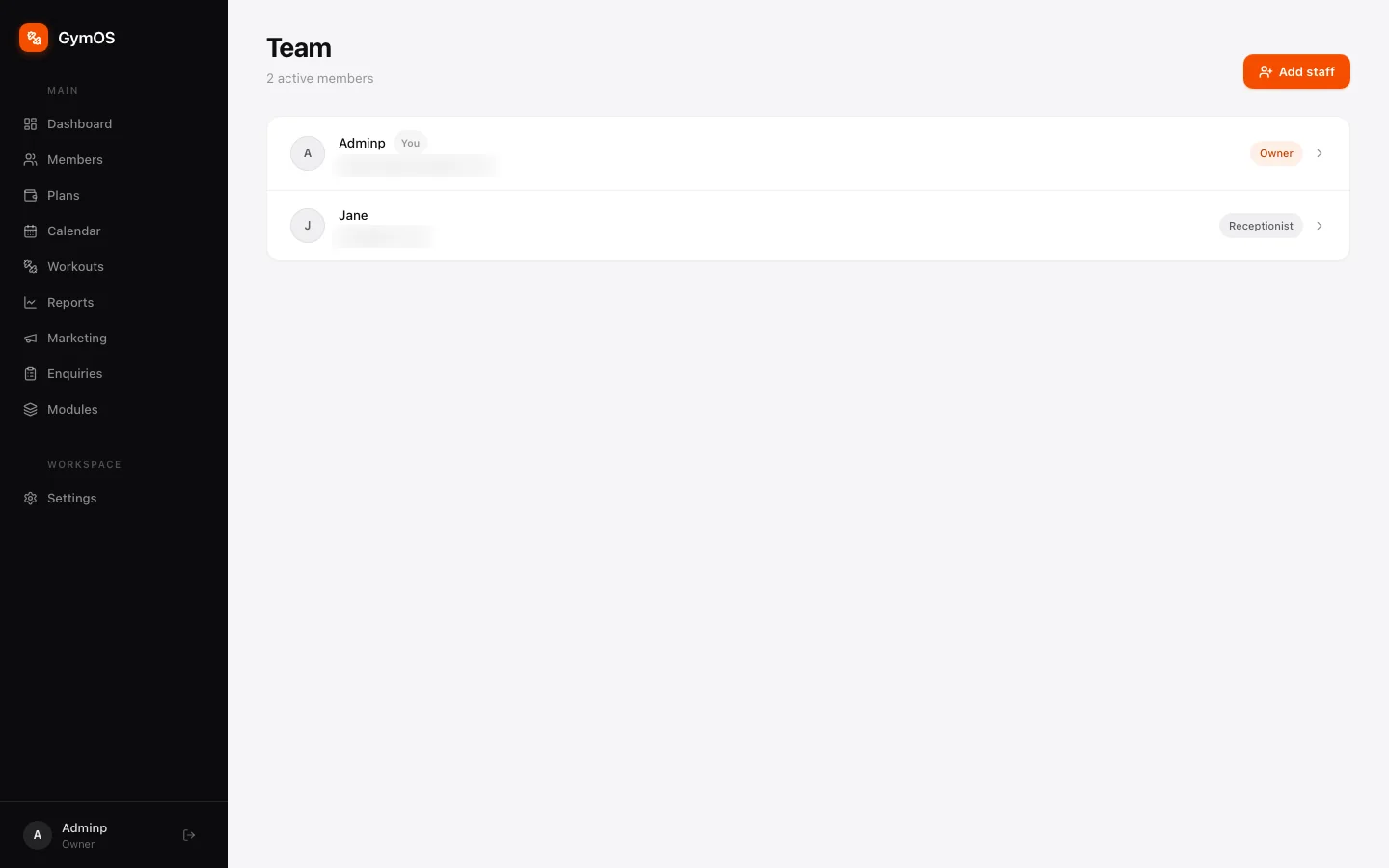
- Click + Add staff.
- Enter their name and email, and choose a role: Manager, Trainer, Receptionist or Accountant. Instructors usually get Trainer.
- Save. They can now sign in at app.svich.in/login.
Click anyone on the list to open their page, where you can change their role or deactivate their login. Deactivating keeps their history and just stops them signing in.
A staff login is separate from the instructor name on a class. You can put anyone’s name on a class without giving them a login.
Roles and access
Settings → Security & Access → Roles & Access decides what each role can see: one row per page, one column per role.
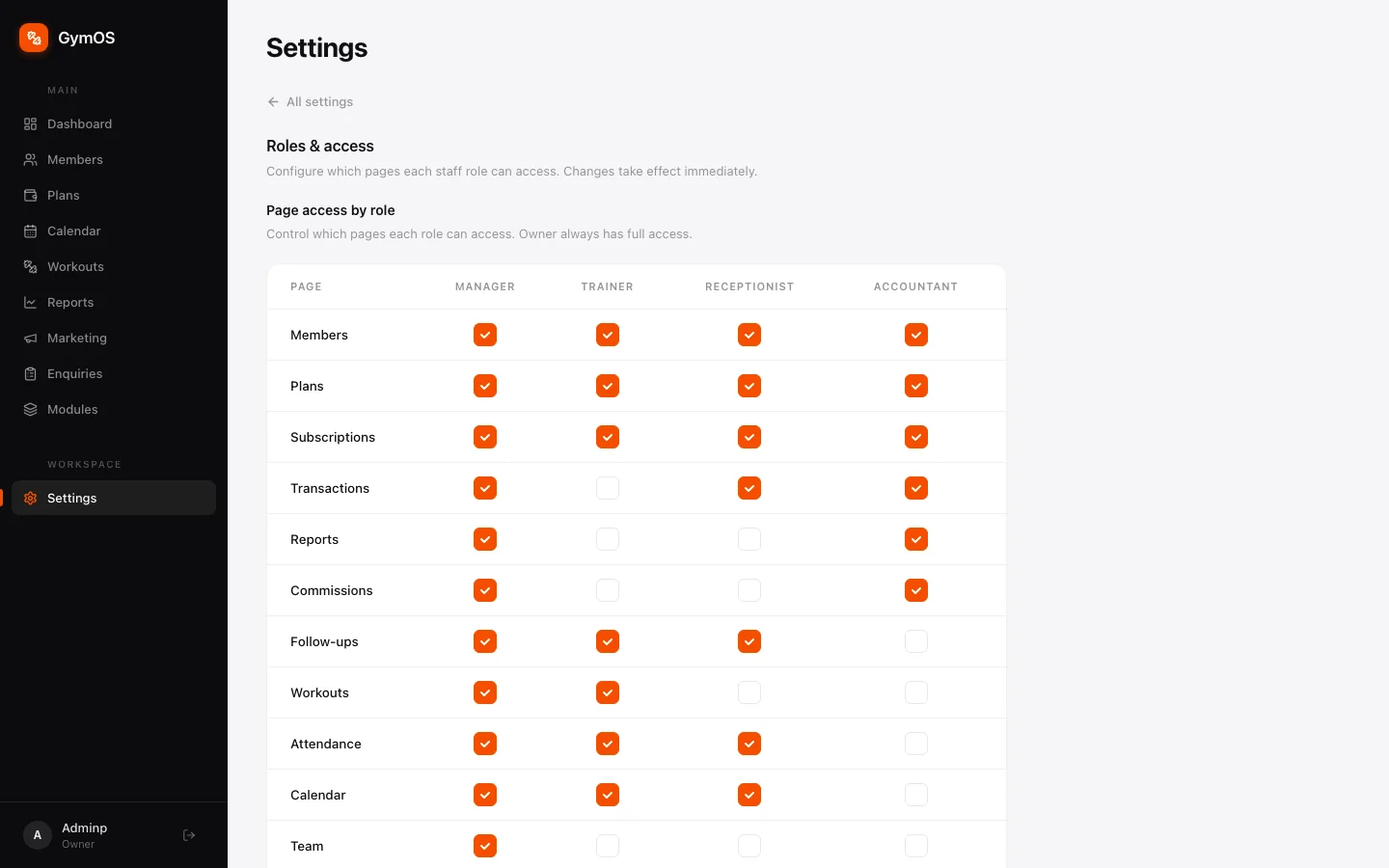
Tick or untick a box and it takes effect immediately — no save button, and no need for anyone to sign out. The Owner isn’t in the matrix, because the owner can always see everything.
Out of the box, the roles are split like this:
| Role | Can open | Can’t open |
|---|---|---|
| Manager | Everything | — |
| Trainer | Members, Plans, Subscriptions, Follow-ups, Attendance, Calendar | Transactions, Reports, Commissions, Team |
| Receptionist | Members, Plans, Subscriptions, Transactions, Follow-ups, Attendance, Calendar | Reports, Commissions, Team |
| Accountant | Members, Plans, Subscriptions, Transactions, Reports, Commissions | Follow-ups, Attendance, Calendar, Team |
Change any of it to match how your studio actually divides the work — many studios let instructors see the Calendar and nothing to do with money.
Pages a role can’t open disappear from its sidebar, and search never returns them.
Stuck on a step, or found something that doesn't match your screen? Email hello@svich.in.