StudioOS guide
Attendance
Check students in at the front desk, see who is in right now, review every visit, and spot paying members who have stopped coming.
Add-on. Attendance is sold separately. If you don’t see it, your plan doesn’t include it yet.
There are two ways to record who came, and they answer different questions:
- Class attendance — marking each booked student attended or absent in a session. That’s what decides whether a class is used up from their pack. See Calendar and bookings.
- The Attendance page — every check-in and check-out at the front desk, whatever brought them in. That’s what this guide covers.
Open Attendance from Settings → Operations → Attendance, or press ⌘ K and type attendance. It has three tabs: Live, History and Insights.
Door readers and fingerprints aren’t part of StudioOS — with fixed class times and someone at the front desk, there’s no door to automate. Everything below works with check-ins made by your team.
The Live tab
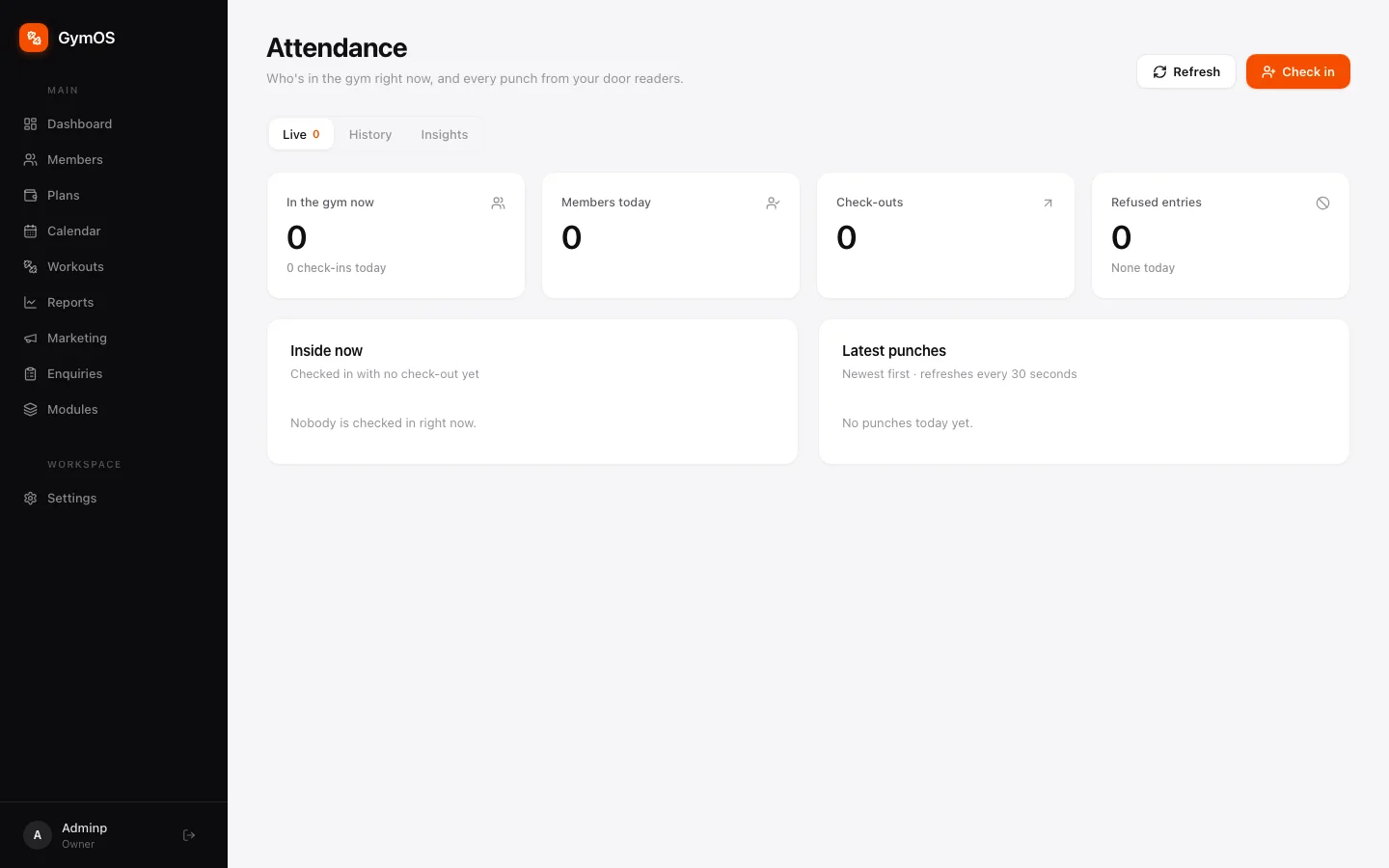
Counters for who is in now, Members today and Check-outs, above two live panels:
- Inside now — everyone who has checked in and not yet checked out.
- Latest punches — the newest check-ins and check-outs, newest first. It refreshes every 30 seconds, or straight away with Refresh.
Refused entries only counts door readers turning someone away, so on StudioOS it stays at zero.
Checking a student in
-
Click Check in in the top-right corner.
-
Search by name, phone or email, then click Check in beside the student. The same dialog checks people out.
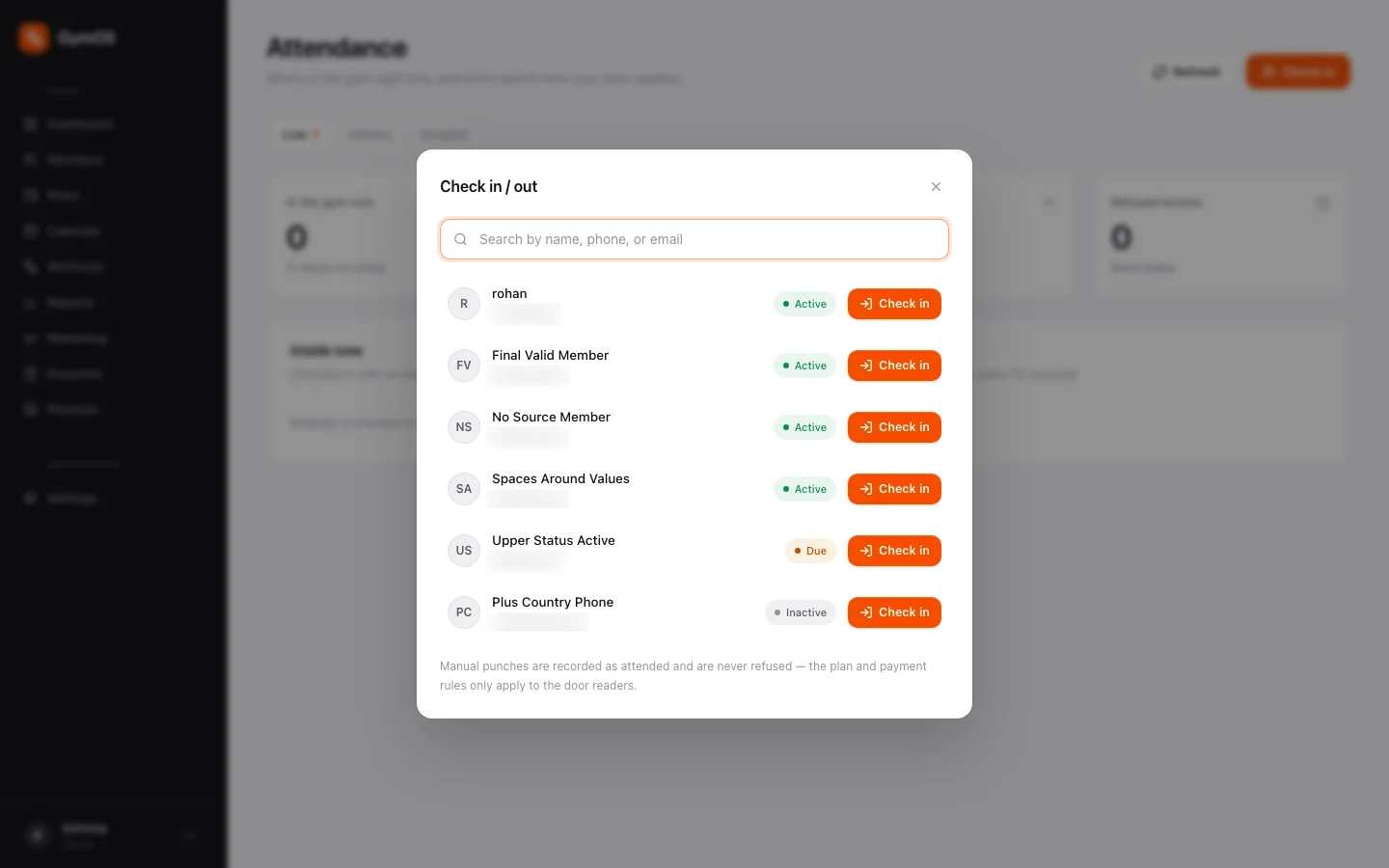
The Check in / out dialog
Check-ins made by your team are always recorded as attended. Nobody is ever turned away here because of their plan or payment status — that’s your call to make at the desk.
The History tab
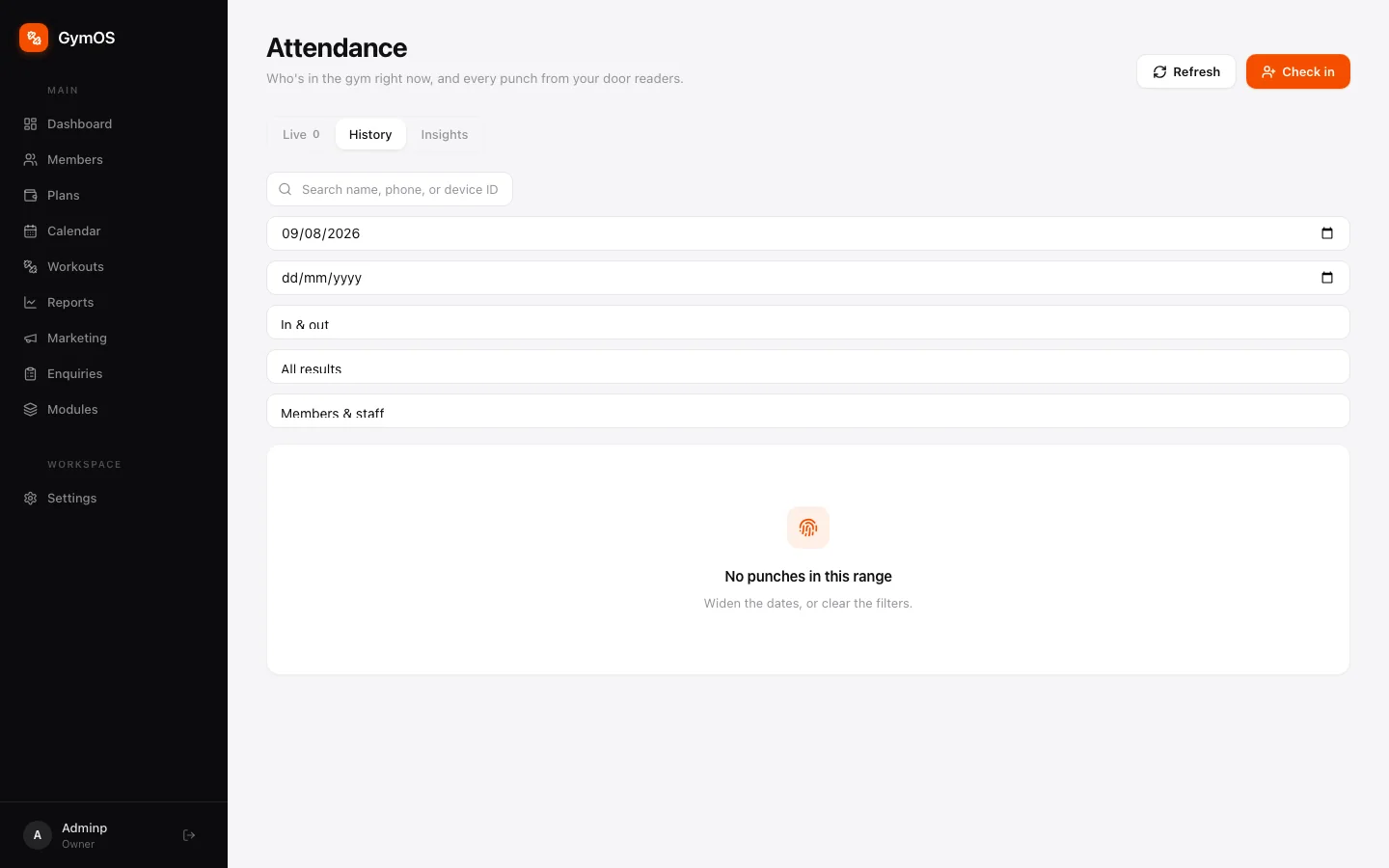
A searchable log of every check-in. Search by name or phone, set a date range, and filter by In & out, All results, and Members & staff. It’s the place to settle “was I really here that day?”
The Insights tab
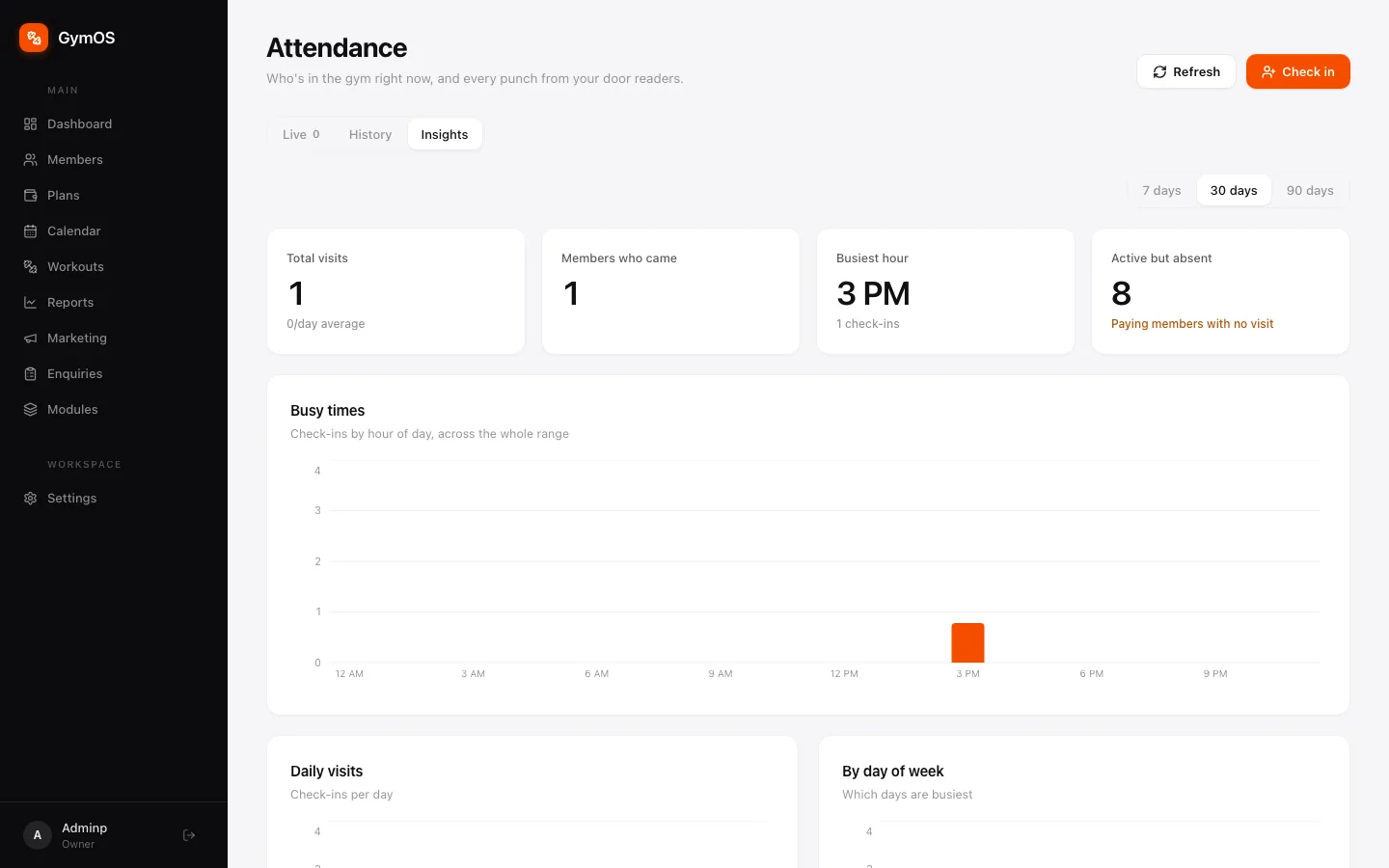
Trends over the last 7, 30 or 90 days: Total visits, Members who came, Busiest hour, and Active but absent — paying members who haven’t come in that window. Those are the students most likely not to renew; a friendly message now is worth more than a renewal reminder later.
Busy times charts visits by hour, Daily visits by date and By day of week by weekday — handy when you’re deciding whether that 7am slot needs a second batch.
Stuck on a step, or found something that doesn't match your screen? Email hello@svich.in.