StudioOS guide
Calendar and bookings
See every class session month by month, check who's booked, book students in, and mark who attended so their packs stay accurate.
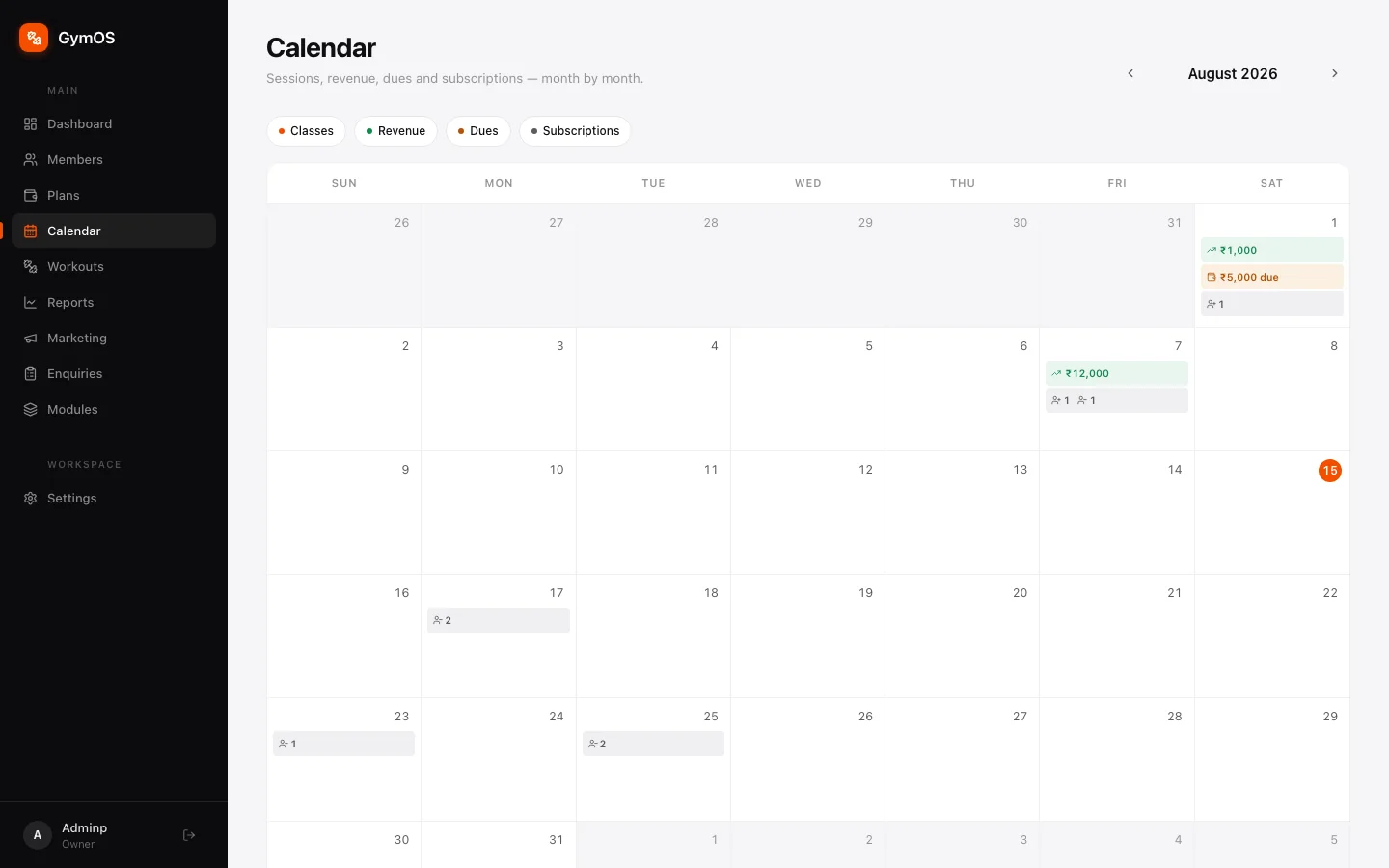
Calendar is where your timetable comes to life: every class session on its date, alongside the money coming in, payments falling due, and plans starting or ending. Open it from the sidebar.
Reading the month
Four switches above the grid show or hide each layer:
| Layer | What it puts on each day |
|---|---|
| Classes | The class sessions scheduled that day |
| Revenue | Payments collected, with the amount |
| Dues | Payments falling due, with the amount outstanding |
| Subscriptions | Plans and packs starting or ending |
Move between months with the ‹ › arrows. Click a day for its full breakdown — the money in and out, and every session that day — and pick a session from there to open it.
The sessions themselves come from your classes. If the calendar is empty, set up a class first: see Classes and class packs.
Opening a class session
Click any class on the calendar to open its details on the right:
- the date, class name and time
- the instructor and room, if the class has them
- how many are booked, against the class’s capacity — 8/12 booked
- a One-off tag if it’s an extra session rather than part of the regular timetable
Under that sits the session’s status and its Bookings: each student’s name and phone number, and whether they’re booked, attended or absent.
Booking a member into a class
When you sell the pack. Most bookings happen here. On the student’s profile, click Add subscription and choose the class plan. The form lists the plan’s upcoming sessions under Select sessions to book — tick the ones they’re coming to, then finish the payment details. See Subscriptions and payments.
Automatically. On a plan set to Everything included — a course or an unlimited membership — students are booked into every class in their plan period without you doing anything.
One session at a time. Open a session and click Book to add a single student. Cancel under a booking frees the spot again.
What students may do is governed by the plan’s booking rules: how far ahead they can book, how many open bookings they can hold at once, and how late they can cancel and still get the class back. See Booking rules.
After the class: marking attendance
Marking attendance is what keeps pack balances honest.
- Open the session and click Mark done.
- Beside each booking, click ✓ for attended or ✕ for absent.
By default a no-show still counts as a used class — you can change that per plan with the No-shows count as used rule.
If a class isn’t going ahead, open the session and click Cancel instead of Mark done.
Tip. Give instructors the Trainer role and let them open the Calendar, so they can mark their own classes from the studio floor. See Team and roles.
Stuck on a step, or found something that doesn't match your screen? Email hello@svich.in.