StudioOS guide
Settings
Find every setting in one hub — invoice templates, referral commissions, data imports and your Svich billing — and what each one does.
Settings, at the bottom of the sidebar, is the hub for everything that isn’t day-to-day work.
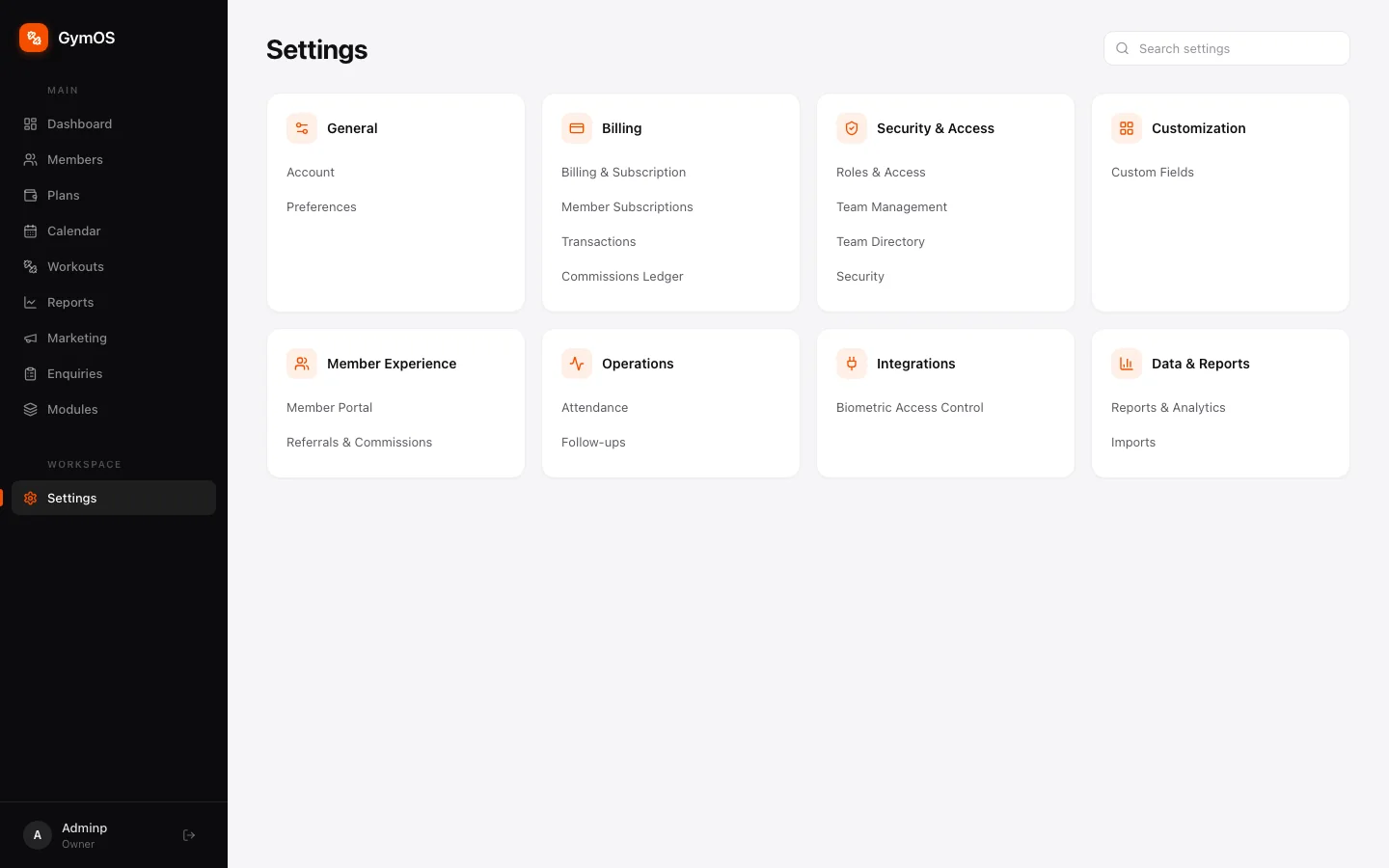
Settings are grouped into cards:
| Card | Contains |
|---|---|
| General | Account, Preferences |
| Billing | Billing & Subscription, Invoice Templates, Member Subscriptions, Transactions, Commissions Ledger |
| Security & Access | Roles & Access, Team Management, Team Directory, Security |
| Customization | Custom Fields |
| Member Experience | Member Portal, Referrals & Commissions |
| Operations | Attendance, Follow-ups |
| Data & Reports | Reports & Analytics, Imports |
You’ll also see an Integrations card for biometric door readers. Door access is a GymOS feature and isn’t part of StudioOS.
Know roughly what you want but not where it lives? Use Search settings at the top right, or press ⌘ K from anywhere.
Covered in their own guides:
- Roles & Access and Team Management — Team and roles
- Custom Fields — Custom modules and fields
- Member Portal — Member portal
- Invoice Templates, Member Subscriptions, Transactions and Commissions Ledger — Subscriptions and payments
- Attendance — Attendance
- Follow-ups — Marketing and follow-ups
Referrals and commissions
Reward instructors and staff for bringing students in. Go to Settings → Member Experience → Referrals & Commissions.
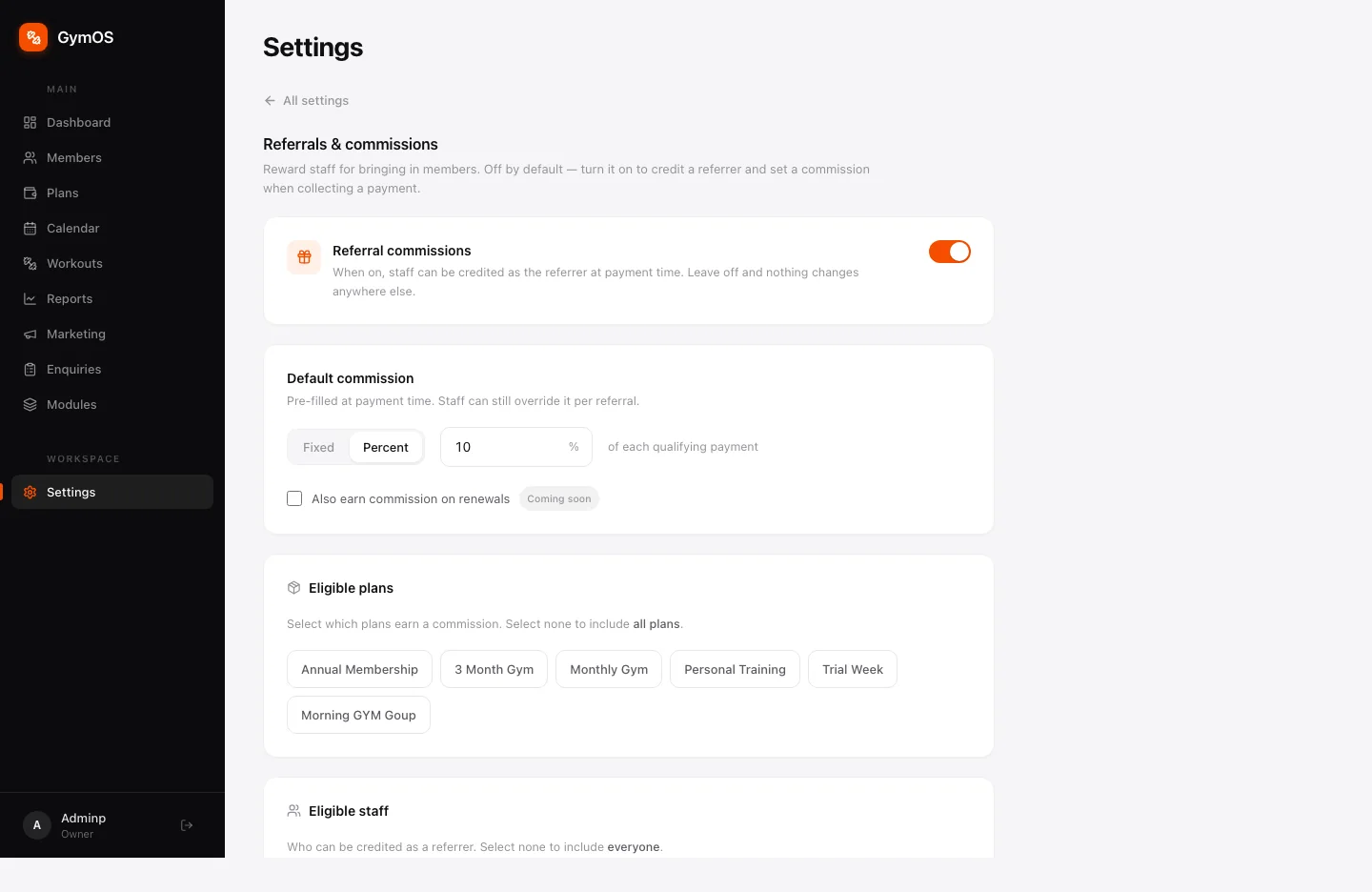
- Referral commissions — off by default. When on, staff can be credited as the referrer when a payment is collected. Leave it off and nothing changes anywhere else.
- Default commission — Fixed or Percent (for example, 10% of each qualifying payment). It’s pre-filled at payment time, and staff can still change it for a particular referral.
- Eligible plans — which plans earn commission. Select none to include every plan.
- Eligible staff — who can be credited. Select none to include everyone.
Earned commission appears in the Commissions Ledger.
Imports
Moving from a spreadsheet or another system? Settings → Data & Reports → Imports brings your students across.
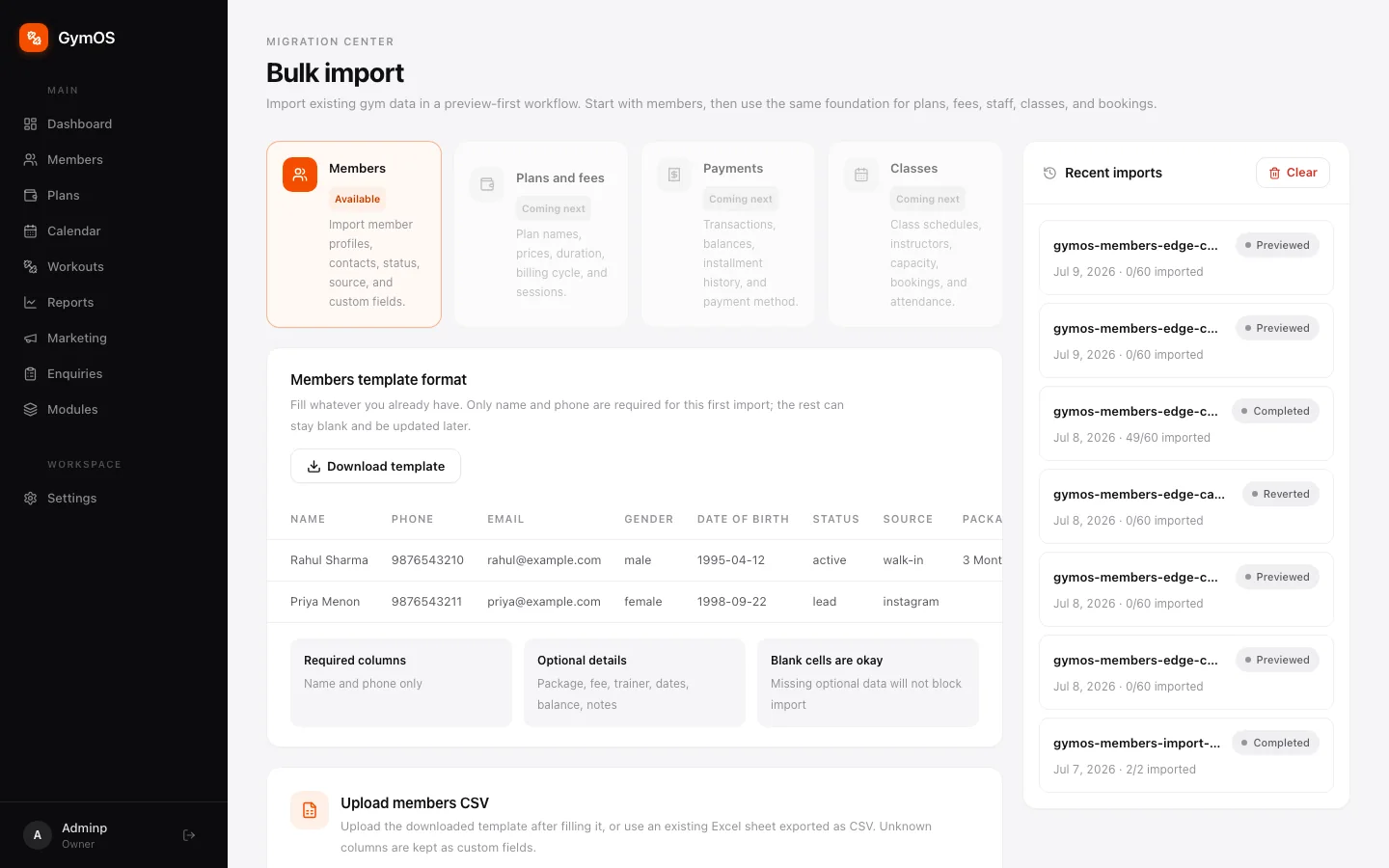
- Click Download template to get the members spreadsheet format.
- Fill in what you have. Only name and phone are required; package, fee, instructor, dates, balance and notes are optional, and blank cells won’t block the import.
- Save it as CSV — an Excel sheet exported as CSV works — and upload it under Upload members CSV. Columns StudioOS doesn’t recognise are kept as custom fields.
- Check the preview before anything is created, then run the import.
Recent imports lists each file with how many rows were imported and its status: Previewed, Completed or Reverted.
Members can be imported today. Plans and fees, payments and classes are next — until then, set up your classes in Classes and class packs.
Billing and subscription
Settings → Billing → Billing & Subscription is about your own Svich plan — what you pay for the software — and your billing history. Not to be confused with your students’ packs and memberships, which live in Subscriptions and payments.
Not ready yet
A few pages in Settings are placeholders for features still being built, and say Coming soon: Account (organisation name, time zone and contact details), Security, and Reports & Analytics. The Reports item in the sidebar is the same — revenue, retention and attendance reports are on the way.
Until then, the dashboard, Attendance insights and the Commissions charts cover the most common reporting questions.
Stuck on a step, or found something that doesn't match your screen? Email hello@svich.in.