StudioOS guide
Subscriptions and payments
Sell a pack or membership to a student, book their classes, collect payments and instalments, handle freezes and renewals, and send invoices.
Every pack or membership a student buys is a subscription, and every payment against it is a transaction. This guide covers selling, collecting and keeping both tidy.
To create the classes and packs you sell, start with Classes and class packs.
Other kinds of plans
Not everything you sell is a class. When you + Add plan in Plans, the plan type can also be:
| Type | Use it for |
|---|---|
| Membership | A time-based plan with no class schedule attached |
| Personal training | One-to-one sessions |
| Session pack | A number of sessions, tracked as the student uses them |
| Add-on | Something sold on top of a main plan — a mat locker, say |
Each has a Course period (Monthly, Quarterly, Yearly or Custom), a fee, the Max freeze days allowed, whether students may pause or extend, and Fee collection — full upfront, or monthly, quarterly or yearly instalments.
Selling a pack to a student
- Open the student’s profile in Members and click Add subscription.
- Select a plan.
- For a class plan, tick the classes they’re coming to under Select sessions to book. (On an Everything included plan they’re booked in automatically.)
- If someone on your team referred them, choose that person under Referral (optional). With referral commissions on, their commission is filled in for you.
- Enter the payment details: in full or by instalment, the amount paid now, any Discount %, and the method — Cash, UPI, Card, Bank Transfer or Online.
- Save. A Payment recorded confirmation appears, where you can also email the student their invoice.
Collecting what’s owed
When a student has a missed instalment or a part payment outstanding:
- click View & pay on the Overview tab of their profile, or
- click Collect beside them in Follow-ups.
Enter the amount to settle and the method. Pay part of it and the rest stays on their outstanding balance.
Managing a subscription
Every subscription on a student’s Subscriptions tab has a ⋯ menu. An expired one also shows a Renew button.
| Action | What it does |
|---|---|
| Freeze | Pauses the plan between a Freeze from and Freeze until date, up to the plan’s max freeze days. With the default booking rules, unused classes are kept. |
| Restart | Starts a paused subscription again from a Restart date. |
| Extend | Moves the end date later — for a studio closure, or a goodwill week. |
| Renew | Starts a new period on a date you choose. Any unpaid balance carries into the new cycle. |
| Cancel | Ends the subscription on a Cancellation date. |
| Delete | Removes a subscription added by mistake. |
Invoices
Choose Mail Invoice from a row’s ⋯ menu, or from the confirmation right after a payment, to email the student an invoice.
What the invoice looks like is set once, in Settings → Billing → Invoice Templates: your business address, Tax ID / GSTIN, logo URL and Invoice number prefix, plus an Accent color and Footer note. A live preview updates as you type.
Subscriptions
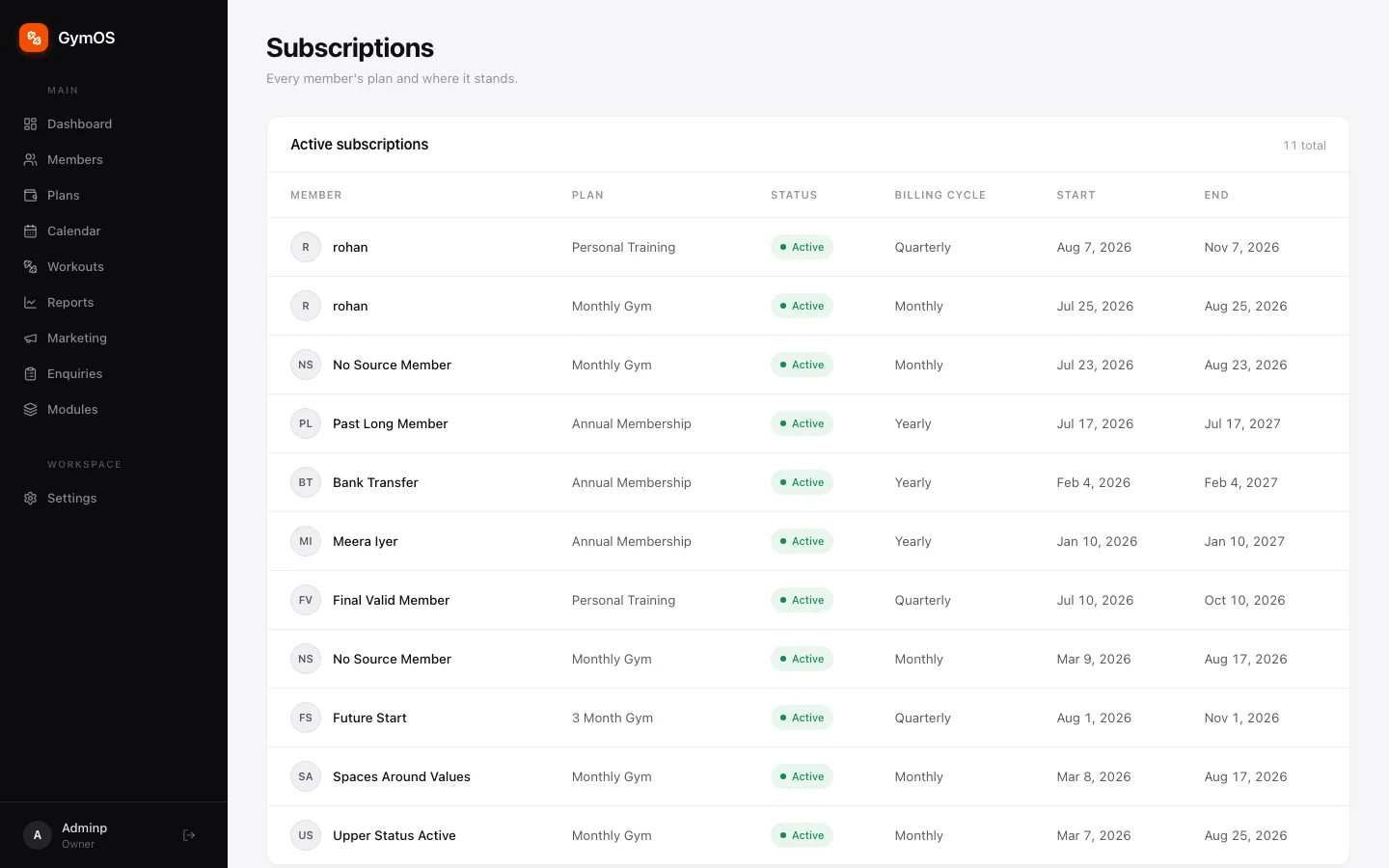
Subscriptions lists every student’s plan and where it stands — status, billing cycle, start and end dates. Open it from Settings → Billing → Member Subscriptions, or with the Record a payment shortcut on the dashboard. Look down the end dates to see whose pack is running out.
Transactions
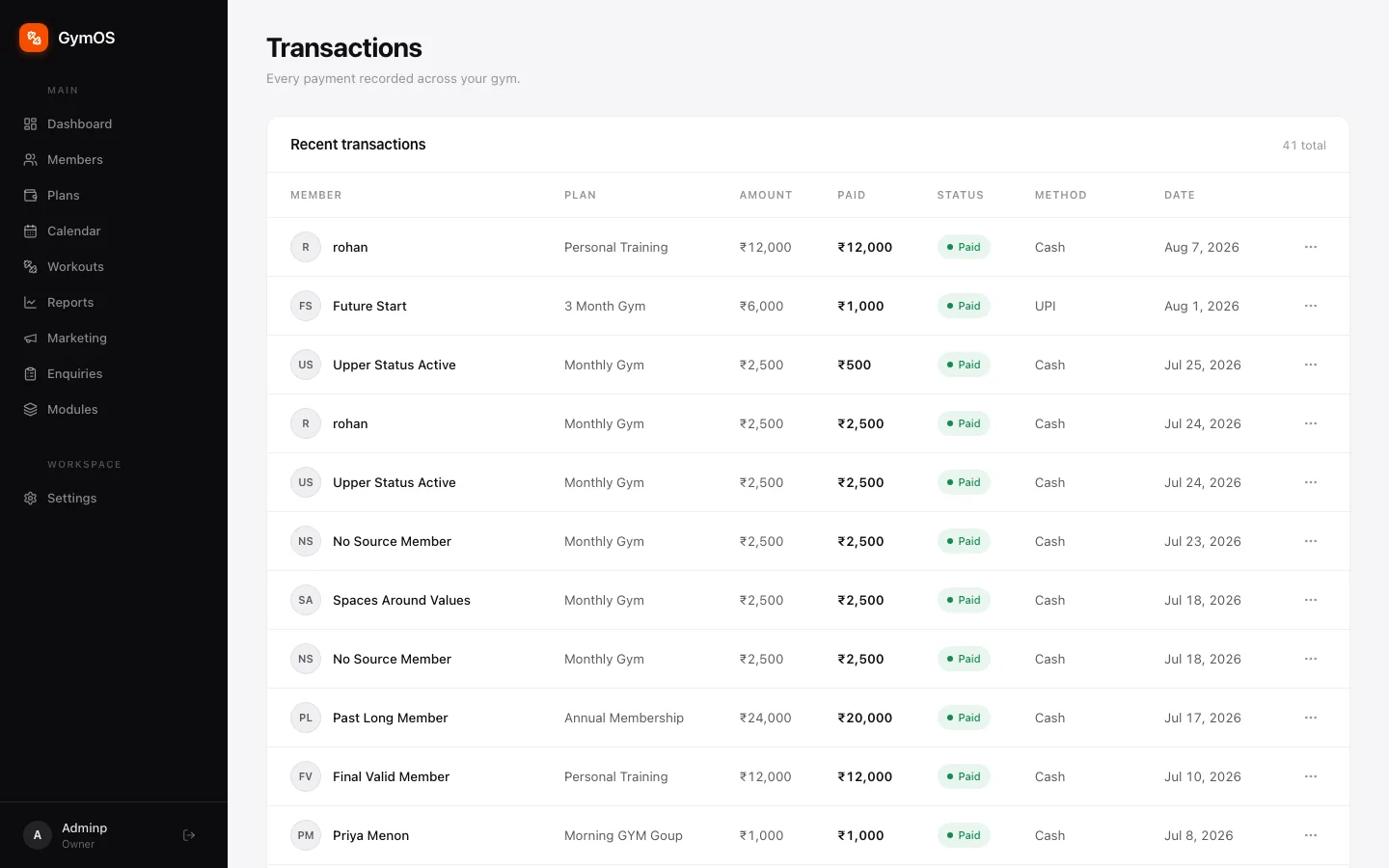
Transactions is the full payment ledger: every payment, with the amount due, amount paid, status, method and date. Open it from Settings → Billing → Transactions. Use it to reconcile the day’s takings or pull a month’s revenue for your accountant.
Commissions
Commissions shows who’s bringing students in and what they’ve earned — useful if instructors earn a cut for the friends they bring. Open it from Settings → Billing → Commissions Ledger.
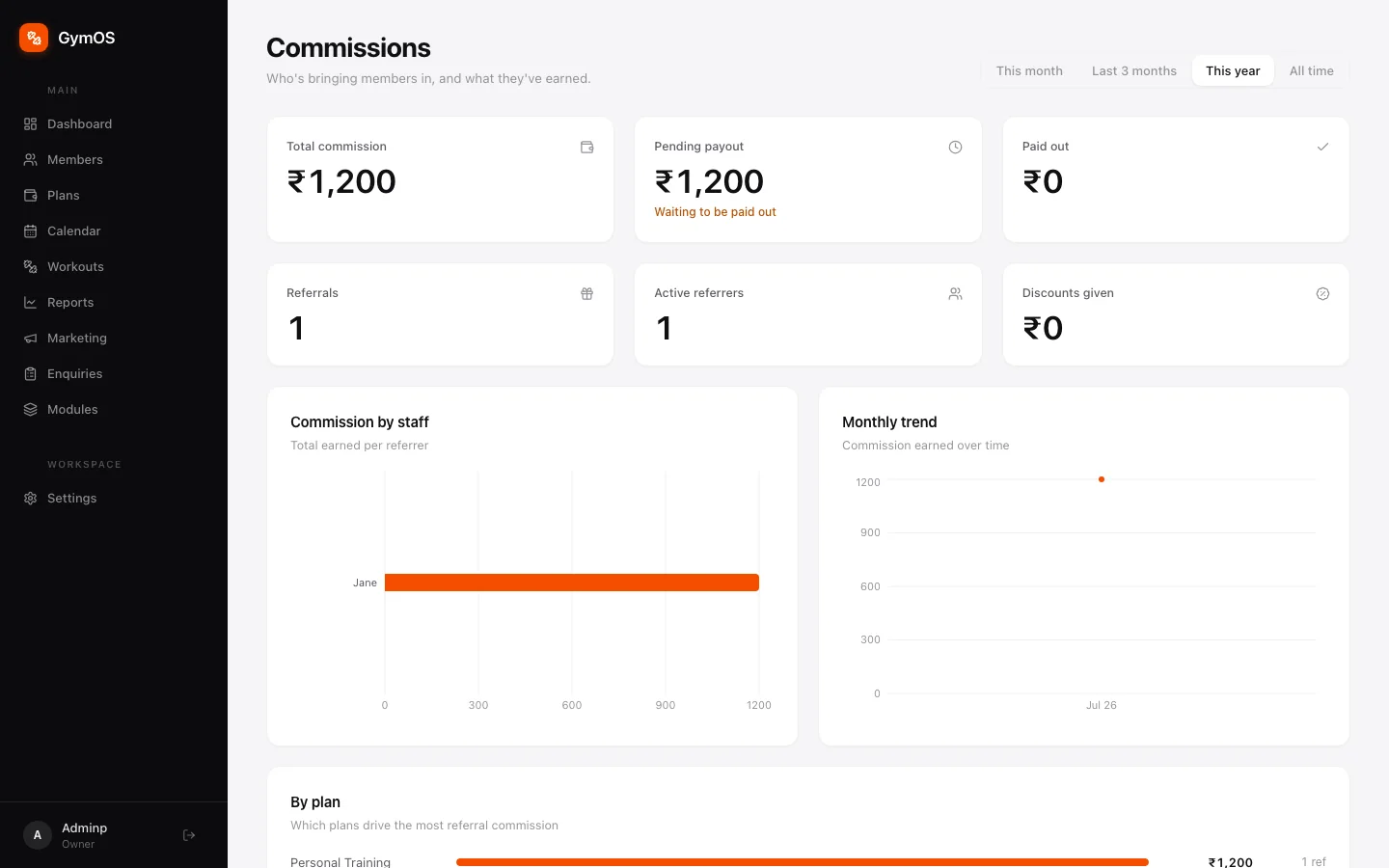
Totals across the top — Total commission, Pending payout, Referrals and Active referrers — over This month, Last 3 months, This year or All time, then charts by staff member, by plan and by month.
Stuck on a step, or found something that doesn't match your screen? Email hello@svich.in.