StudioOS guide
Classes and class packs
Build your class timetable and sell it as packs, unlimited memberships, monthly batches or drop-ins — with booking rules that protect your spots.
In StudioOS, a class and the way you sell it are set up together, as a class-based plan. One plan says when the class runs, what a student gets for their money, and the rules for booking it. Get this right and the calendar, bookings and renewals follow on their own.
Creating a class plan
-
Open Plans from the sidebar and click + Add plan.
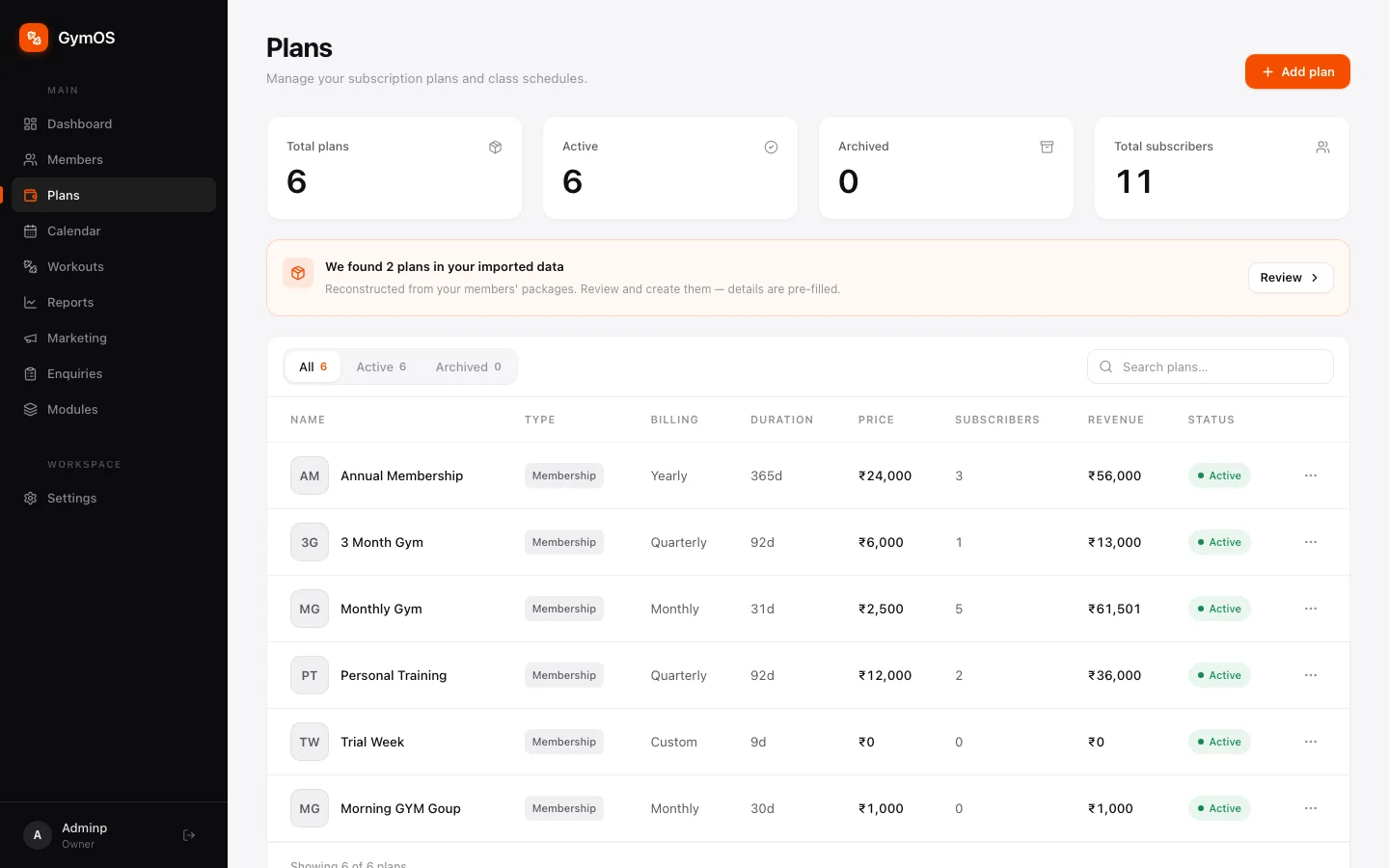
The Plans list -
Give it a Plan name your team will recognise — Morning Hatha, Salsa Beginners, Batch 4.
-
Choose Class based as the plan type. The form changes to ask when the class runs and what students get.
-
Set the fee, the plan’s duration, and Fee collection: Full upfront, or Monthly, Quarterly or Yearly installments.
-
Work through the three sections below, then save.
When the class runs
Click Pick times to open a week calendar. Each cell is one time the class runs — click to add or remove it. Hours already taken by another class show in grey, so you see a clash before you create one.
Because every time is its own cell, a class can run Monday, Wednesday and Friday at 7am, and Saturday at 9am. It doesn’t have to be the same hour every day.
Once you’ve picked, the button reads Edit times.
What members get
One question, three answers:
| Answer | Use it for | What the student gets |
|---|---|---|
| Everything included | A course, a batch or an unlimited membership | Every class for the length of the plan, booked in automatically |
| A set number of classes | A class pack, or a monthly allowance | The number you enter under How many classes? A toggle picks In total (a one-off pack) or Every month (tops back up each renewal) |
| Pay each visit | Drop-ins and casual students | Nothing upfront — they pay each time they book |
Under the cards, one sentence spells out exactly what you’re about to sell — “10 Morning Yoga classes for ₹4,000, used on whichever days suit them. Unused ones expire when the plan ends.” If that sentence isn’t what you meant, change the answer before you save.
Booking rules
Collapsed to one line with sensible defaults. Click Adjust only if you need to change them.
| Rule | Default | What it does |
|---|---|---|
| Free cancellation window | 12 hours | Cancel earlier than this and the class goes back into their pack |
| No-shows count as used | On | Booked and didn’t turn up? It still counts |
| Book ahead limit | 30 days | Stops one student booking out the whole term on day one |
| Open bookings at once | 3 | Stops a few students holding all the spots in a popular class |
| Pause sessions when frozen | On | A frozen plan keeps its unused classes |
Rules are per plan, so a paid teacher-training course can be stricter than a Sunday drop-in.
Worked examples
A 10-class pack. Pick every time the class runs → A set number of classes → 10, In total → duration 60 days → Full upfront. Students use their ten on whichever days suit them; any left expire after 60 days.
Eight classes a month. A set number of classes → 8, Every month → duration 12 months → Monthly installments. The allowance tops back up to eight each month.
Unlimited monthly. Everything included → duration 30 days, paid upfront. The student is booked into every class in their month.
A dance batch. Pick the days the batch runs → Everything included → duration 30 days. Each student’s start date is set when you subscribe them, so whoever joins this week gets their own month — booked into the classes inside it, and not beyond.
Drop-ins. Pay each visit, with a price per class. Nothing is paid until they book.
Adding and extending sessions
The dated sessions on your calendar are generated from the class’s times.
- Generate sessions fills the calendar further ahead. Choose the First session and then a Number of sessions, a Last session on or before date, or both. A pack is usually sized by count (20 sessions, ending wherever the 20th falls); a course by its dates.
- One-off session adds a single extra class — a workshop, a make-up class — with Add session. It shows on the calendar with a One-off tag.
- Set up class schedule appears for a class plan that doesn’t have a timetable yet. It asks for the Class name, Instructor, Location / room, Class duration, Start time, Max spots and the days it Repeats on, then creates the sessions.
Leave Max spots empty for a class with no limit.
Showing classes on your public page
Every plan has a Show on public page switch, off by default. Switch it on — and add a short public description — for the classes and packs you want people to see. Class-based plans take their timetable with them, so visitors see exactly when each class runs. See Your public page.
Next
- Sell a pack and book a student in: Subscriptions and payments
- See who’s booked and mark attendance: Calendar and bookings
Stuck on a step, or found something that doesn't match your screen? Email hello@svich.in.